
Microsoft Lens Is Gone — 7 Best Alternatives in 2026 (Free & Paid)
So, Microsoft Lens is officially retiring. If you relied on it for scanning documents, photos, or whiteboards, you're probably wondering what to do next. It's a bummer when a useful app disappears, but the good news is there are plenty of solid microsoft lens alternative 2026 options out there. We've rounded up some of the best apps like Microsoft Lens that can help you replace Microsoft Lens, whether you need something simple or a bit more advanced. Since Microsoft Lens discontinued, it's time to explore what else is available.
Key Takeaways
- Microsoft Lens has been retired from app stores and will stop scanning new documents after March 9, 2026.
- OneDrive is Microsoft's official recommendation, offering basic scanning integrated into its cloud storage.
- PDFgear Scan is a strong contender, matching Microsoft Lens's core features with added free editing tools and no ads.
- Adobe Scan provides robust scanning but often requires a subscription for its best features.
- Apple Notes and Google Drive offer simple, built-in scanning solutions for their respective ecosystems.
PDFgear Scan
If you're looking for a scanner app that gets straight to the point, PDFgear Scan is a solid choice. It doesn't mess around with a bunch of intro screens; you just open it up and start scanning. It feels pretty close to the old Microsoft Lens experience, but with some neat modern touches.
This app is totally free, and you won't find any annoying ads or limits on how much you can scan. It handles all sorts of documents – think receipts, IDs, books, you name it. It can even turn your scans into Word documents, which is handy. Plus, it has this cool AI chat feature that lets you ask questions about the stuff you've scanned and pull out key info. That's usually something you have to pay extra for with other apps.
PDFgear Scan has a few different modes that help optimize the scans. The Book Mode is pretty good at flattening out pages from textbooks, so you don't get that weird curve. And the Receipt Mode is neat because it can help organize your expenses and even export them in formats like CSV or Excel. It's a really capable scanner that doesn't cost anything.
The scanning camera fires up fast, and it's usually pretty good at finding the edges of your document without you having to fiddle with it. The text recognition is also quite sharp, whether it's printed text or even some handwriting.
Here's a quick look at what you can do:
- Scan different types of documents: receipts, IDs, books, and more.
- Save scans as PDFs, Word files, or images.
- Use the AI chat to get information from your scanned papers.
- Add your signature directly to scanned documents.
- Organize multi-page scans easily.
OneDrive Scanner
Microsoft is pointing people toward its OneDrive app as the main replacement for Microsoft Lens. It’s pretty straightforward: you open the OneDrive app, tap the plus button, and select ‘Scan photo.’ This feature lets you quickly capture documents and save them straight to your cloud storage. It’s a decent option if you’re already using OneDrive to keep your files organized across devices. The scans sync up automatically, so they’re ready whenever you need them.
However, it’s important to know that OneDrive’s scanner is pretty basic. You get one general scan mode, and the editing tools aren’t very advanced. Plus, you can’t save scans directly to your phone’s local storage; everything goes into OneDrive.
Here’s a quick look at how to use it:
- Open the OneDrive app.
- Tap the '+' button.
- Choose 'Scan photo'.
- Capture your document.
- Save it to your preferred OneDrive location.
If you’re looking for a simple way to digitize documents and keep them in Microsoft’s cloud, the OneDrive scanner is a solid choice. It’s a direct path for those who want to stay within the Microsoft ecosystem after Microsoft Lens retirement. For more complex scanning needs, you might want to explore other options, but for everyday document capture, it gets the job done.
Adobe Scan
Adobe Scan is a pretty solid choice if you're looking for a scanner app that does more than just take a picture of a document. It really turns your phone into a capable scanner. You can scan just about anything – receipts, notes, even whiteboards – and it saves them as PDFs or JPEGs. The OCR (Optical Character Recognition) is a big deal here, letting you actually pull text out of your scans to edit or copy. This is super handy for things like digitizing old notes or making sure you've got all the details from a business card.
It's free to download, which is great, but like many apps these days, some of the really advanced stuff requires a subscription. With the free version, you can still do all the basic editing like cropping, rotating, and adjusting colors. You can also organize your scans into folders, which is a lifesaver when you've got a lot of papers to keep track of.
Here's a quick look at what you can do:
- Scan documents, receipts, IDs, and more.
- Automatically detect edges and clean up scans.
- Extract text using OCR for editing.
- Save as PDF or JPEG.
- Organize scans into folders.
If you need to do more advanced things like combine multiple scans, password-protect your files, or export directly to Microsoft Office formats, you'll likely need to look into their premium subscription. But for most everyday scanning needs, the free version of Adobe Scan works really well.
CamScanner
CamScanner was a really popular choice for a long time, and for good reason. It made turning your phone into a scanner pretty straightforward. You could snap a picture of a document, and it would clean it up, detect the edges, and save it as a PDF or JPEG. It had features like OCR to pull text out of images, which was handy for making scanned documents searchable or editable.
It was especially good at making scans look professional, even if the original document was a bit messy.
Here’s a quick look at what it offered:
- Document Digitization: Turn physical papers into digital files like PDFs or JPEGs.
- Edge Detection & Correction: Automatically finds document borders and straightens them out.
- OCR (Optical Character Recognition): Extracts text from scanned images, making it editable.
- Cloud Sync: Options to save scans to cloud storage like Google Drive or Dropbox.
- Sharing: Easily share your scanned documents via email or other apps.
However, things got a bit complicated with CamScanner. The free version started showing a lot of ads, and to get rid of them and unlock more features, you had to pay for a subscription. There were also some privacy concerns that popped up over the years, which made some people look for alternatives. If you're looking for a scanner that's more focused on privacy and fewer ads, you might want to check out something like PDFgear Scan. It offers a similar scanning experience without some of the drawbacks.
Apple Notes
You know, if you've got an iPhone or an iPad, you've already got a pretty decent scanner built right in. It's called Apple Notes. Yeah, the app you probably use for grocery lists and random thoughts. It's surprisingly capable for scanning documents.
Here's how it generally works:
- Open the Notes app.
- Create a new note or open an existing one.
- Tap the camera icon and select 'Scan Documents'.
- Position your document within the frame, and the app will automatically capture it. You can also manually take a picture.
- After capturing, you can adjust the corners, rotate the scan, and even apply filters like 'B&W' or 'Grayscale' to make it look cleaner.
- Once you're happy, tap 'Save Scan'. The scanned document is embedded right into your note.
It's a no-fuss way to digitize receipts, whiteboards, or pages from a book without needing a separate app. Plus, with iCloud, your scanned notes sync across all your Apple devices, so they're always accessible. It's not going to win any awards for advanced features, but for quick, everyday scanning needs, it's surprisingly handy. You can even share the scans as PDFs or images to other apps or people. It's a good option if you're already in the Apple ecosystem and just need something simple to get the job done. For those looking for alternatives to Microsoft Lens, Apple Notes offers built-in scanning capabilities right on your device.
The beauty of using Apple Notes for scanning is its integration. You don't need to download anything extra. It's just there, ready to go when you need to capture a document quickly. It makes the whole process feel very natural and unobtrusive.
Google Drive Scanner
If you're already deep in the Google ecosystem, the scanner built right into Google Drive is a pretty solid option. It's not some fancy, standalone app, but it gets the job done for most everyday scanning needs. You just open up your Google Drive app, tap the plus button, and select 'Scan'. It's pretty straightforward.
The process is simple: point, shoot, and save directly to your cloud storage. You can capture multiple pages, and it does a decent job of automatically detecting the edges of your documents. After you take the picture, you get some basic editing tools – you can crop it, rotate it, and even apply a few filters to make the text clearer. It's not going to win any awards for advanced features, but for quickly digitizing a receipt or a page from a book, it's perfectly fine.
Here's a quick rundown of what you can expect:
- Direct Integration: Scans go straight into your Google Drive, making them accessible from any device where you're logged in.
- Multi-page Support: You can easily combine several pages into a single PDF document.
- Basic Editing: Crop, rotate, and apply filters to improve scan quality.
- Free to Use: It's included with your Google account, so no extra cost involved.
It's a good choice if you're looking for a no-fuss way to get documents into your digital life without installing another app. For those who need more advanced features like OCR text recognition or specialized document modes, you might want to look elsewhere, but for general use, Google Drive is a reliable pick.
Genius Scan
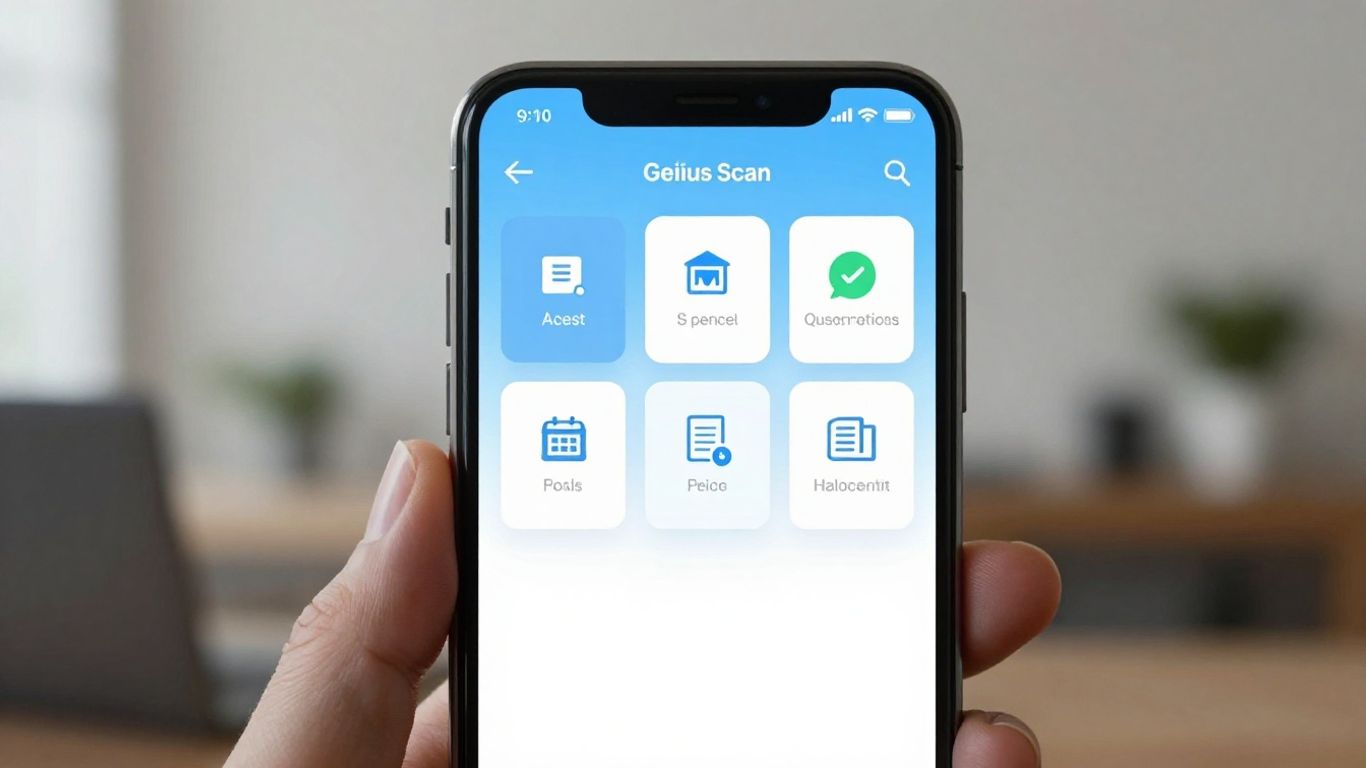
Genius Scan is a solid choice if you're looking for a mobile scanner that doesn't mess around. It's pretty good at turning your phone into a portable document scanner, letting you digitize papers on the fly. The app really shines with its batch scanning capabilities, which is a lifesaver when you've got a stack of documents to get through. It also has smart file naming and a bunch of export options, so you can send your scans wherever they need to go, like your favorite cloud service or even directly to accounting software if you're using it for business receipts.
It's great for a lot of different things:
- Scanning receipts from a business trip
- Archiving mail and important papers
- Digitizing sketches or music scores
- Sending documents instantly to the office
Genius Scan offers a free version, which is pretty capable on its own. If you find yourself needing more advanced features, like enhanced PDF editing or more export destinations, there's a subscription plan called Genius Scan Plus. It's nice that they give you options, you know? You can try it out for free and see if it fits your needs before committing to anything.
The app handles image processing well, meaning your scans come out clear and sharp. It's designed to make document management less of a headache, which is something we can all appreciate.
It also works offline, which is a big plus if you're often in places without reliable internet. This means you can scan and organize your documents whenever you need to, without worrying about a connection. It's a pretty straightforward scanner app that gets the job done without too much fuss.
So, What's Next for Scanning?
Microsoft Lens is officially out, and it's a bummer for those who liked its straightforward approach. Microsoft is pointing folks toward OneDrive, which is fine if you're already all-in on their cloud stuff and just need basic scans. But honestly, it feels a bit limited compared to what Lens offered. If you're like me and want something that just works well for scanning without a bunch of extra fluff or a subscription wall, checking out options like PDFgear Scan, Adobe Scan, or even the built-in scanners on your phone's OS is probably the way to go. It might take a little trial and error to find your new favorite, but there are definitely good replacements out there ready to pick up where Lens left off.
Frequently Asked Questions
Why is Microsoft Lens being retired?
Microsoft is stopping support for the Microsoft Lens app. It's being removed from app stores and won't work for new scans after March 9, 2026. Microsoft is shifting its focus to other tools like OneDrive for scanning needs.
What happens to my old scans from Microsoft Lens?
You can still see your old scans saved in the Microsoft Lens app as long as you don't delete the app and stay signed in with your Microsoft account. However, you won't be able to make new scans after March 9, 2026.
Is OneDrive a good replacement for Microsoft Lens?
Microsoft officially suggests using OneDrive. It's good for basic scanning and saving documents to the cloud. But, it doesn't have all the special scanning modes or editing tools that Microsoft Lens offered.
What are the best free alternatives to Microsoft Lens?
Several great free options exist! PDFgear Scan is highly recommended for its strong features without ads or hidden costs. Apple Notes (for iPhone users) and Google Drive Scanner are also good for simple scanning tasks.
Are there paid apps that are better than Microsoft Lens?
Yes, apps like Adobe Scan offer advanced features, especially if you already use other Adobe products. CamScanner is also popular but comes with ads and potential security concerns. Genius Scan is great for users who need lots of control.
Which alternative is most like Microsoft Lens?
PDFgear Scan is often seen as the closest alternative. It offers a similar scan-first experience with many of the same features, like automatic cropping and perspective correction, all for free without any ads or watermarks.