
How to Send a Scanned Document to Google Drive, Dropbox, or OneDrive
Key Takeaways
Digitizing paper files is a straightforward process that helps declutter your office and keep important records secure. By leveraging built-in mobile scanning features or dedicated applications, you can ensure your papers are always accessible from anywhere.
- Use existing smartphone tools for fast, ad-hoc digital conversion without extra installations.
- Direct cloud storage integration saves time by bypassing manual file transfers.
- OCR technology transforms flat images into searchable text for better information retrieval.
- Organize documents with clear, dated naming conventions to simplify future searches.
- Secure sensitive paperwork by utilizing encrypted cloud platforms and consistent access controls.
Using built-in scanning features on your smartphone
Modern smartphones are equipped with sophisticated cameras that serve as excellent scanners for everyday documents. Instead of relying on traditional desktop hardware, you can turn your device into a portable studio for capturing receipts, contracts, or even sketches. Understanding how your specific mobile operating system handles these tasks is the first step toward effective document management.
Using Notes on iPhone for quick scans
Apple provides a surprisingly capable scanner directly within the Notes app. Simply open a new note, select the camera icon, and choose the scan documents option. The device automatically detects edges and adjusts for perspective distortions in real-time.
Leveraging the files app for PDF exports
For those who prefer to keep their files organized outside of specific note-taking apps, the files app offers a reliable way to create PDFs. It allows you to collect multiple captures into a single file before exporting it to secondary locations. This functionality streamlines workflows when you need to send a Home building project management update or documentation to a team.
Built-in camera scanning on Android devices
Many Android phones include native camera features that handle document recognition with ease. The software typically offers high-contrast modes that ensure text remains legible regardless of lighting conditions. Once the snapshot is taken, users can usually save the image as a PDF directly to their internal storage.
Scanning directly to Google Drive
Moving your paper records into a centralized cloud environment ensures that you can locate them from any device at home or in the office. This transition minimizes physical clutter while creating an indexable library of your digital assets. Integrating your camera with cloud services provides a seamless bridge between your physical reality and your digital workflow.
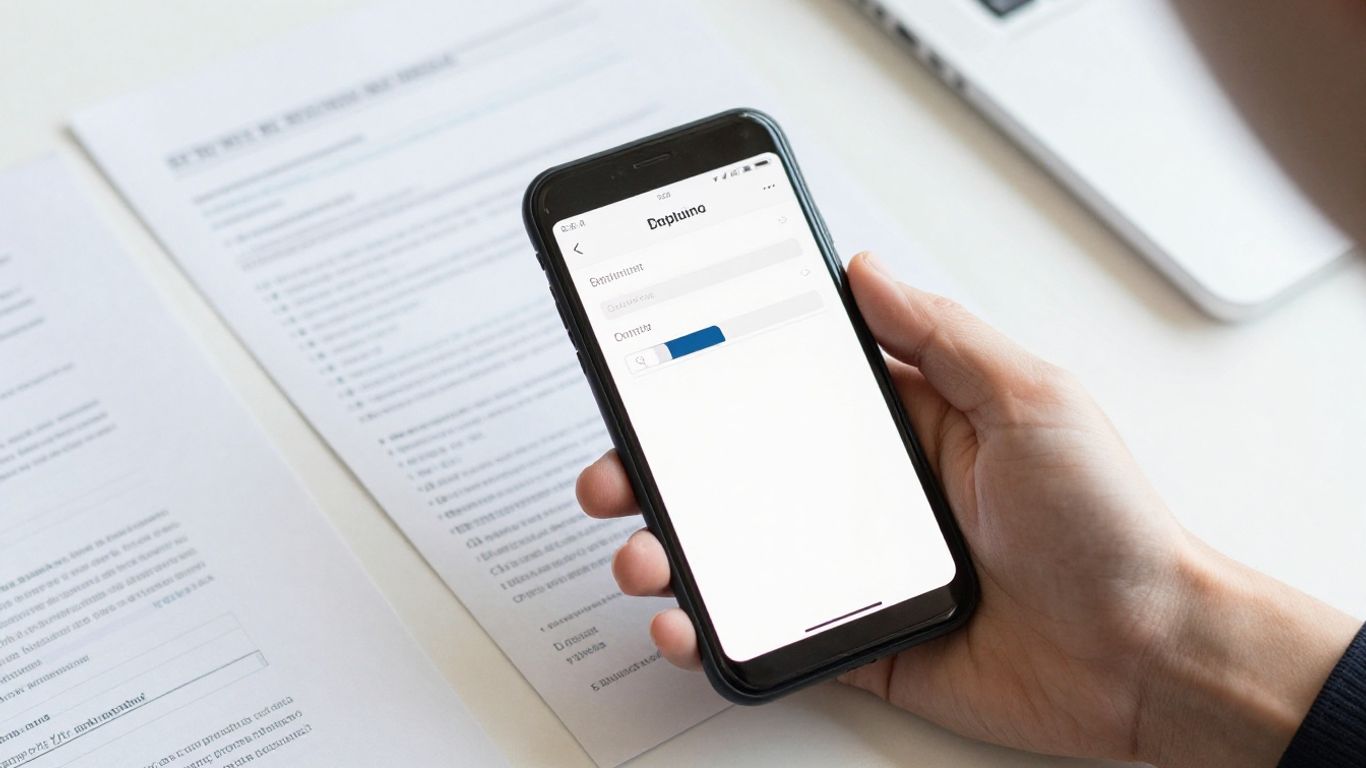
Accessing the built-in scanner in the Google Drive app
Google Drive includes a dedicated scanning feature that bypasses the need for intermediary file saves. By tapping the plus icon and selecting scan, you can capture documents and push them instantly to your cloud storage account. Understanding SEO reporting for agencies can be similar to managing data—you need a clear destination for every bit of information you collect.
Configuring upload settings for high-resolution images
Large documents often require high-resolution settings to remain usable for print or detailed reference. You should check your storage sync settings within the application to ensure that quality is preserved rather than compressed during the upload process.
Organizing documents into specific Google Drive folders
Creating a logical hierarchy is essential for finding files weeks or months after they are captured. Establishing specific naming patterns and category folders will prevent the "digital junk drawer" effect, keeping your drive as organized as a successful Starter Performance SEO Plan execution.
Scanning and uploading documents to Dropbox
Using specialized platforms like Dropbox can enhance how you handle file synchronization across workstations. This approach is beneficial when you need constant access to scanned files while keeping them synced across mobile and desktop interfaces.
Utilizing the Dropbox scan feature for direct cloud uploads
Dropbox provides an intuitive interface within its mobile application that routes captures directly to your primary storage. This feature is particularly useful for users digitizing documents on mobile devices who want to ensure their data is backed up immediately. For more advanced setups, developers might integrate Dynamic Web TWAIN to handle browser-based scanning for larger organizational systems.
Setting up automatic camera uploads to Dropbox
Automation reduces the risk of forgetting to back up important documents from your device's local memory. By enabling automatic camera uploads, every scan you store locally can trigger a background process that updates your cloud mirror without additional interaction.
Sharing scanned files with team members via Dropbox links
Sharing files through secure links is a core advantage of using cloud storage compared to email attachments. This allows you to manage permissions and keep control over who has access to sensitive documents, similar to how one might handle a 24-hour locksmith dispatch in a sensitive home security context. Many users find it helpful to visualize these capabilities and differences through a quick comparison table:
| Feature Type | Basic Photo | Scanner App | Cloud Integration |
|---|---|---|---|
| Resolution | Variable | High | Optimized |
| Security | Low | Medium | High |
| Accessibility | Local Only | Syncable | Cloud Shared |
Selecting the right tool for your specific goals is vital for maintaining productivity in the long run.
Managing scans with OneDrive
Integrating your scanning process with existing office ecosystems can simplify administrative tasks significantly. By tapping into native tools provided by Microsoft, you can maintain consistency in how you approach document archival and editing.
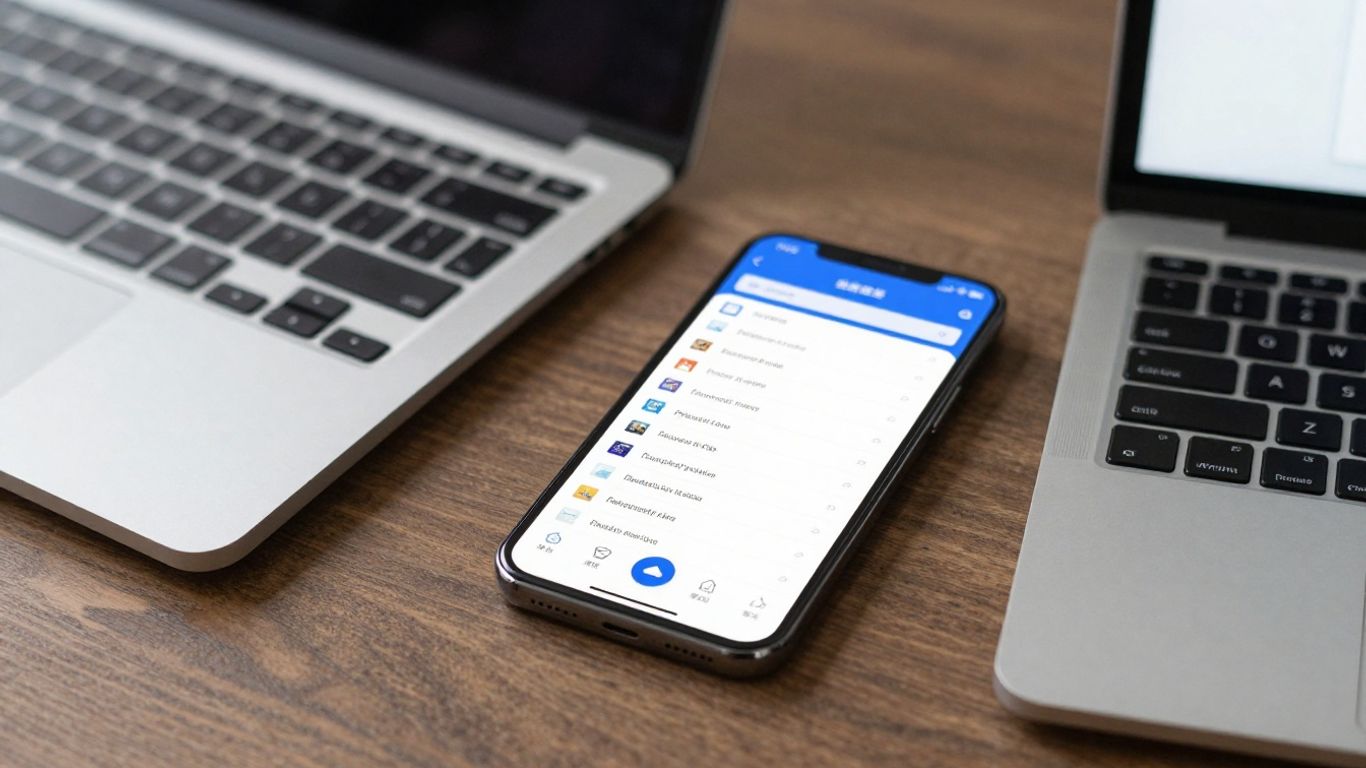
Using the Microsoft Lens feature within OneDrive
Microsoft Lens serves as the backbone for document capture within the OneDrive experience. It offers intelligent framing and text recognition that is designed specifically for professional documentation, ensuring that your scans look clear and properly aligned before saving.
Handling multi-page documents in OneDrive for Windows and mobile
Creating a multi-page PDF is intuitive when using the built-in features, allowing users to add page after page before finalizing the capture. This is a common requirement for multi-page documents like manuals or lengthy agreements that need to stay unified in your file structure.
Syncing scanned files across devices using OneDrive
Syncing ensures that your file library is consistent everywhere, whether you are at your desk or commuting. Users should review their folder sync exclusions to ensure that only the most critical files are taking up local cache space on their mobile handsets.
Choosing the right third-party scanning apps
Sometimes the native tools do not offer the granular control needed for complex document editing. For those instances, turning to specialized third-party software can expand your capabilities and provide more refined results.
Benefits of dedicated scanner apps like Scanner Pro
These apps often provide a more focused interface than the general suite of applications shipped with mobile operating systems. The software is specifically built to handle high volumes of scanning with minimal manual effort.
OCR capabilities for creating searchable documents
Text recognition, or OCR, is arguably the most valuable feature for professional workflows. It converts static images into text, enabling users to search for specific content within hundreds of saved files.
Comparing subscription-based versus free scanning tools
Many users find that high-quality scanning receipts functionality often sits behind a paywall in premium applications. It is worth evaluating whether the saved time and advanced automation are worth a monthly investment for your individual usage needs.
Best practices for file organization and security
Organizing digital files requires the same diligence as maintaining physical filing cabinets. A lack of structure today leads to frustration tomorrow, especially when you need to access critical documents quickly.
Applying consistent naming conventions for easy retrieval
Naming files consistently—perhaps using dates and document types—serves as the foundation for a searchable database. For instance, using "2026-07-03_Receipt_Rent" is far better than relying on default filenames like "IMG_001.jpg." To maintain a tidy workspace, follow a specific set of steps:
- Define a default naming schema based on the document type.
- Use folders categorized by year and month for chronological sorting.
- Regularly review folders to remove duplicate or blurry scans.
- Encrypt sensitive documents containing personal financial information.
Following these simple rules will keep you efficient and highly organized during your daily administrative work. Whether you are managing personal records or investigating a shoulder calcification treatment like barbotage for a project, tracking documentation remains a cornerstone of success.
Protecting sensitive scanned documents with cloud encryption
Always ensure that your cloud accounts utilize two-factor authentication to protect the data you have uploaded. Encryption settings are usually found in the security tab of your cloud provider settings, providing an extra layer of peace of mind.
Troubleshooting common sync and upload errors
Errors are often caused by unstable internet connections or full storage quotas on your account. If the sync process stalls, check your cellular data settings or clear out old, unused folders to re-enable service functionality.
Conclusion
Mastering document scanning transforms your smartphone into a powerful archival tool that ensures your important files are safe, searchable, and always at hand. By combining smart capture techniques with disciplined file management, you create a streamlined digital infrastructure that supports both professional and personal needs effectively.
Frequently Asked Questions
What file formats are usually best for scanning?
PDF remains the industry standard for document scanning because it preserves text and layout while remaining compatible with almost any device or software environment.
Does scanning drain my phone battery?
Camera-intensive tasks like scanning and image processing will consume more power than standard photo taking, so keep your device charged if working with large piles of paper.
Can I edit a scanned document later?
If you perform OCR, you can often export and edit the underlying text in a word processor, though complex graphics may not maintain perfect formatting.
Are scanned documents legally binding?
While they are generally accepted for most day-to-day transactions, verify specific requirements with local laws or relevant institutions for high-stakes documents like deeds or legal contracts.
How often should I back up my cloud storage?
Most modern clouds sync in real-time, but it is prudent to occasionally verify that your files have uploaded correctly by checking them on a separate desktop or web interface.
What lighting is ideal for scanning?
Natural, indirect light is best as it minimizes harsh glare on glossy papers and creates a uniform look across the surface of the document.
Can I merge images from different days into one document?
Most high-quality scanning applications allow you to append new pages to an existing document file at any time, providing significant flexibility for ongoing projects.