
How to Scan a Handwritten Document and Convert It to Text
Key Takeaways
Converting paper notes into digital formats saves time and keeps information organized. Mastery of modern image processing makes this process both fast and reliable.
- Use high-contrast settings when scanning handwritten documents.
- Natural lighting reduces shadows that interfere with optical recognition.
- Dedicated mobile tools offer better accuracy than general-purpose scanners.
- Always review converted text for errors created by handwriting style.
- Proper file management ensures documents remain searchable for years.
Understanding hand-written text recognition technology
Optical Character Recognition, commonly known as OCR, serves as the bridge between ink on paper and digital character data. By analyzing the shapes and patterns within an image, software identifies letters and numbers to construct a machine-readable document. This process has become significantly more nuanced as developers refine their ability to interpret dynamic handwritten input effectively.
How optical character recognition works for ink
The engine behind character recognition relies on pattern analysis and neural networks to predict letter sequences. Instead of just looking at isolated pixels, these systems analyze the flow of lines and the spatial relationship between strokes to identify specific clusters that resemble characters. This approach allows the system to remain flexible while interpreting diverse individual writing styles.
Limitations of cursive versus print handwriting
Cursive script presents a unique challenge for character recognition because the letters often connect in a continuous, flowing line. Print handwriting, by comparison, provides distinct boundaries between characters that simplify the segmentation process for digital scanning. Consequently, messy or rushed cursive often requires significantly more processing effort, sometimes resulting in higher error rates compared to detached, legible print.
Why handwritten document OCR differs from machine-printed text
Machine-printed text relies on uniform font structures and standardized kerning, making it highly predictable for any engine to parse correctly. Handwritten notes, however, lack these rigid rules, requiring the software to compensate for variable letter sizes and shapes throughout the page. This unpredictability is precisely why handwriting-specific algorithms are far more sophisticated than those designed only for standard typeface translation.
Scanning and converting notes on iOS
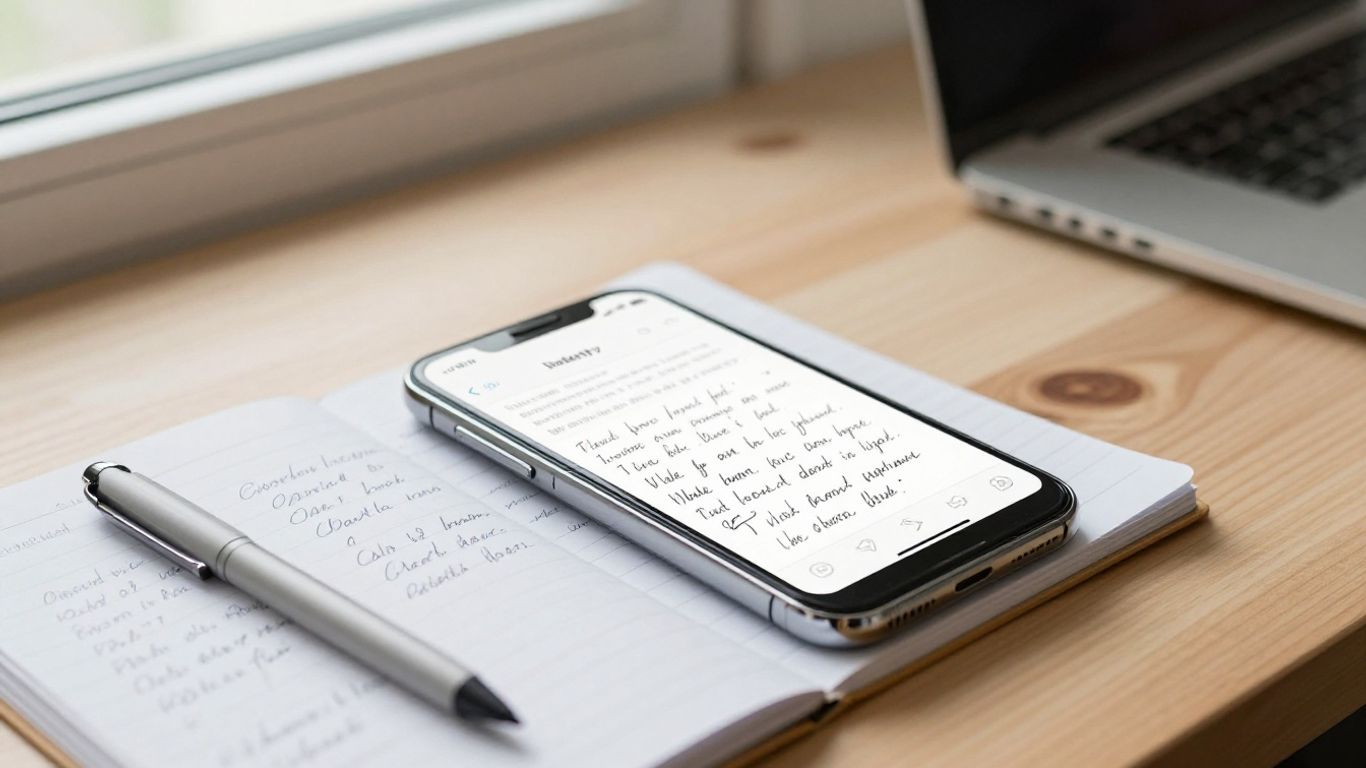
The mobile ecosystem provides native tools that make digitizing physical sheets simple and accessible for most users. You can leverage the camera hardware and integrated system features to capture, refine, and convert notes without needing third-party software for basic tasks. Relying on these native tools creates a surprisingly simple pathway to maintaining a paperless office.
Using the native Notes app for real-time scanning
The built-in software suite on modern hardware allows you to trigger a scan directly from within an interface that manages your saved documents. Once the image is captured, the device automatically applies filters to crisp up the text and adjust the contrast. It is an excellent way to capture quick meeting scribbles using Apple Notes Scribble for immediate digitization.
Leveraging live text features for quick conversions
Beyond manual scanning, the system can identify characters directly from the camera viewfinder in real time. By pointing the lens at your notebook, you can select, copy, and translate text instantly, which is ideal if you only need the content of a single paragraph rather than the entire page. This immediacy transforms how we interact with physical data while on the move.
Managing digitized files via the Files app integration
Once documents are captured, they reside within a centralized location that handles organization, tagging, and movement. Maintaining a clean database is easier when you utilize the system's native storage integration to group related files by date or project. This consistency ensures that your digital library stays organized and accessible for quick retrieval later.
Recommended tools to convert handwriting to text
While hardware-integrated features remain robust, dedicated applications often provide advanced functionality for long-form or complex transcriptions. These apps are specifically engineered to interpret messy or dense text more accurately than native platform tools. When your project demands fidelity, choosing an optimized utility makes a measurable difference in the final document's quality.
Evaluating dedicated mobile apps for handwriting capture
You can use Pen to Print to transform handwritten notes into editable digital text directly from your device. These applications specialize in deciphering difficult script and offer features like internal editing and cloud export, which are helpful for long-term document management. Having a specialized solution ensures you don't struggle with transcription tasks.
Comparing pros and cons of cloud-based OCR services
Many web-based platforms perform heavy processing on off-site servers, which is excellent for handling high-resolution batches or complex document structures. The following table provides a comparison of how different conversion tiers impact your workflow efficiency.
| Feature | Mobile Apps | Cloud Services | Desktop Software |
|---|---|---|---|
| Speed | Ultra Fast | Variable | Moderate |
| Accuracy | Good | Excellent | Best |
| Storage | Local | Remote | Local |
Selecting the right tier depends on how many documents you process weekly and the importance of file privacy.
Choosing between free versus premium conversion software
Choosing between a free application and a paid subscription usually boils down to the volume of your document intake. Premium versions generally unlock features like batch processing, higher accuracy thresholds for historical handwriting, and unlimited cloud storage. If you need to manage a substantial handwritten document ocr project, the investment in paid tools pays for itself by reducing manual edit time.
Workflow for digitizing long-form documents
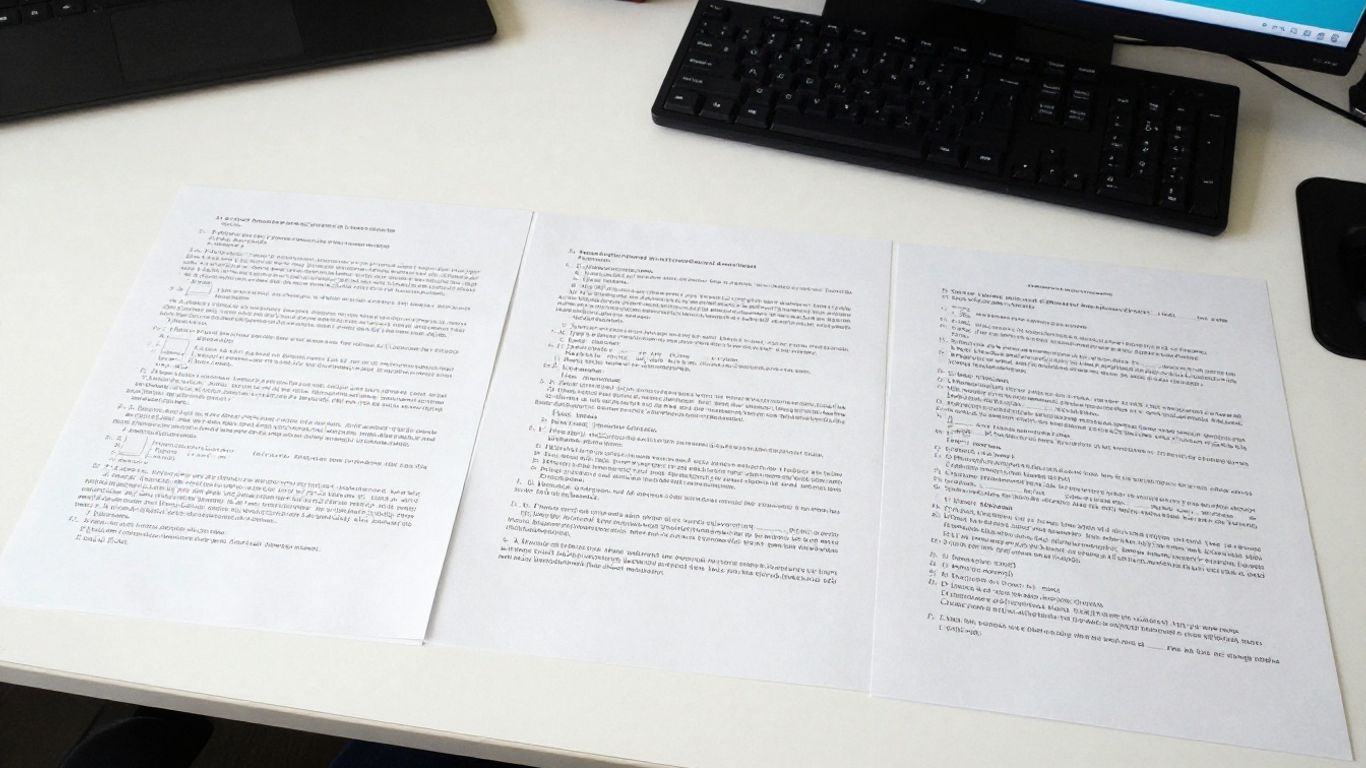
Scaling up the digitization process requires a repeatable system that moves files from physical paper to a searchable database efficiently. Preparing your workspace is the first step toward reducing errors in the resulting files later. Establishing a consistent mechanical process ensures that each batch of documents is captured with professional clarity.
Preparing your physical workspace for clear scanning
Clearing your desk of unnecessary items and using a flat, neutrally colored surface prevents unwanted visual noise from showing up in your scans. Setting up a consistent environment allows the camera to focus on the text itself without being distracted by objects in the background. This simple setup step significantly reduces the amount of post-processing work required to clean up your digitized notes.
Importing raw image files into document processors
Once the images reach your computer, you move them through a workflow that usually involves clearing perspective and white-balance corrections. Utilizing specialized software keeps your work organized according to a Non-Negotiable Algorithm that treats accurate digitization as a primary objective. Using software like Pen to Print ensures that even varied handwritten inputs maintain structural integrity after the final conversion.
Formatting and refining OCR output for document consistency
Automated systems sometimes interpret spacing or indentations incorrectly, meaning you must review the output against your original layout. Consistent formatting during the refinement phase makes your files easier to read when stored alongside machine-printed documents. Taking a few moments to realign text headers or bulleted lists at this stage ensures long-term usability.
Improving OCR success rates
Achieving the highest conversion fidelity often requires micro-adjustments during the initial capture phase. Even slight improvements to your technique result in a much cleaner final text that requires minimal manual intervention. Focusing on these environmental variables stabilizes the data input process significantly.
Techniques to improve handwriting legibility before scanning
Using high-contrast pens, such as fine-point black gel ink on bright white paper, provides the cleanest data point for the scanner to interpret. Avoiding colored papers or textured stationary helps the system distinguish characters from the page surface, reducing errors. Clear, deliberate writing remains the most effective way to ensure high-grade results.
Adjusting ambient lighting for mobile device cameras
Avoid harsh side-lighting that casts shadows across the page, as these shadows can be mistaken for character strokes by the software. Diffused, overhead lighting provides the most uniform contrast across the entire scan, which is essential for uniform text capture. A soft light source acts as the best companion for scan handwritten notes to text efforts while using mobile cameras.
Aligning paper documents to reduce perspective distortion
Capturing an image from a perfectly straight, top-down angle reduces geometric stretching that distorts characters. When perspective gets skewed, the software must work harder to re-map the lines, increasing the probability of misinterpreting characters. Consider the following checklist to improve your alignment:
- Position the camera sensor parallel to the page surface.
- Use a mounting arm if scanning dozens of pages.
- Ensure all four corners are visible in the frame.
- Keep the camera steady until the shutter click.
This deliberate placement ensures that your document remains crisp and undistorted.
Troubleshooting common conversion errors
Despite the sophistication of modern recognition, complex documents occasionally produce errors that require human intervention. Addressing these errors efficiently keeps your project on track without requiring a full re-scan of the original data. Keeping a systematic approach to correction helps you handle exceptions effectively.
Addressing symbols, diagrams, and special characters in notes
Handwritten symbols like arrows, boxes, or equations often confuse standard character recognition software because they fall outside the standard alphabet. You might need to adjust your software's settings to recognize these visual elements, or manually annotate them in the text editor. A convert handwriting to text app can sometimes handle recognized shapes depending on the backend model used.
Managing multi-column layouts and handwritten tables
Complex page structures with multiple columns often result in fragmented reading orders where the output gets scrambled across lines. Most software requires manual guidance to re-order these blocks into a coherent flow after the initial pass. Be sure to verify that the table headers match their corresponding column data before finalizing the conversion.
Validating text integrity after the automated conversion process
Final accuracy checks are essential before moving files into permanent storage, as even high-precision software will occasionally mistake similar-looking characters like 'O' and '0'. Compare the original image to your text file to identify common slips and make corrections before exporting. This final review creates a clean, searchable digital asset that reliably holds the information from your physical archives.
Conclusion
Transforming handwritten notes into digital text is a powerful way to organize information and simplify your professional or academic life. By selecting the right scan environment and software tools, you can ensure that even your most complex notes are preserved for future reference while making them fully searchable and editable.
Frequently Asked Questions
How do I ensure my handwriting is readable by OCR software?
Using high-contrast pens on plain white paper and writing in a clear, detached print style significantly improves the system's accuracy.
Does background lighting affect the conversion quality?
Yes, clear and even lighting without harsh shadows is essential to prevent the software from misreading document surfaces as part of the text.
Can I convert multiple pages for a long document?
Most modern mobile apps and software tools support batch scanning, allowing you to capture and process multiple pages in a single workflow sequence.
Is it possible to recognize symbols and diagrams in handwritten notes?
Standard OCR is optimized for text, but some advanced tools offer specific modes to capture and preserve graphical elements like boxes and arrows.
How can I reorder content if the columns scan incorrectly?
Correction usually involves manually adjusting the reading order within your text processor, which is common with complex multi-column documents.
Do I need to be offline to convert handwritten notes?
It depends on the application, as some local tools perform all OCR strictly on the device while others require a cloud connection for heavy processing.
How often should I check for errors after scanning?
Performing a quick review immediately after scanning is best practice to catch small errors before you add the document to your long-term library.