
How to Scan Multiple Pages Into One PDF on Your Phone
Here are the main things to remember about turning your phone into a scanner:
Key Takeaways
- You can use your phone's built-in camera app for quick scans.
- Apps like Microsoft Office and Google Drive make combining pages into one PDF easy.
- Cloud storage helps you keep your scanned documents safe and accessible anywhere.
- Special tricks exist for scanning books or specific documents like receipts.
- Organizing your scanning process saves time and makes documents clearer.
Scanning Documents Using Your Phone's Built-In Camera
These days, you don't need a big, clunky scanner sitting around to get digital copies of your important papers. Your smartphone, believe it or not, is pretty capable of handling this task all on its own. It's like having a mini scanner right in your pocket, ready to go whenever you need it. This is super handy whether you're working from home, trying to submit an expense report, or just need to send a signed contract to someone quickly.
Capturing Single Pages
Most modern phones have a built-in way to scan documents using the regular camera app. It's usually pretty straightforward. You just open the camera, point it at the document, and the phone often recognizes the edges automatically. There's usually a button to tap, and then you can take the picture. The key is to hold your phone steady and make sure the lighting is good.
Here's a general idea of how it works:
- Open your phone's camera app.
- Position the document so it fills the screen. Look for a box or outline that appears, showing the phone has detected the document.
- Tap the shutter button to capture the image.
- You might see a preview pop up. If it looks good, you're set for that page.
Reviewing and Editing Scans
After you take a picture, your phone will usually show you a preview. This is your chance to check if everything is clear and readable. Most camera apps will let you crop the image to get rid of any background clutter, like your desk or fingers. You can also usually rotate the image if you accidentally took it sideways. Some phones even have basic filters to make the text stand out more. It's worth taking a moment here to fix any small issues before you save it.
Don't underestimate the power of good lighting and a steady hand. These two things make a huge difference in the quality of your scan, often more than any editing tool can fix later on.
Sharing Your Scanned Documents
Once you're happy with how your scan looks, sharing it is usually just a few taps away. You'll typically see a share icon (often looks like three dots connected by lines). Tapping this will bring up a menu of options, letting you send the scan via email, messaging apps, or save it to cloud storage. If you're scanning multiple pages, the phone might prompt you to combine them into a single file, often a PDF, which is super convenient for sending documents. For more advanced multi-page scanning, you might want to check out apps like Google Drive which are designed for this.
Leveraging Productivity Apps for Multi-Page Scans
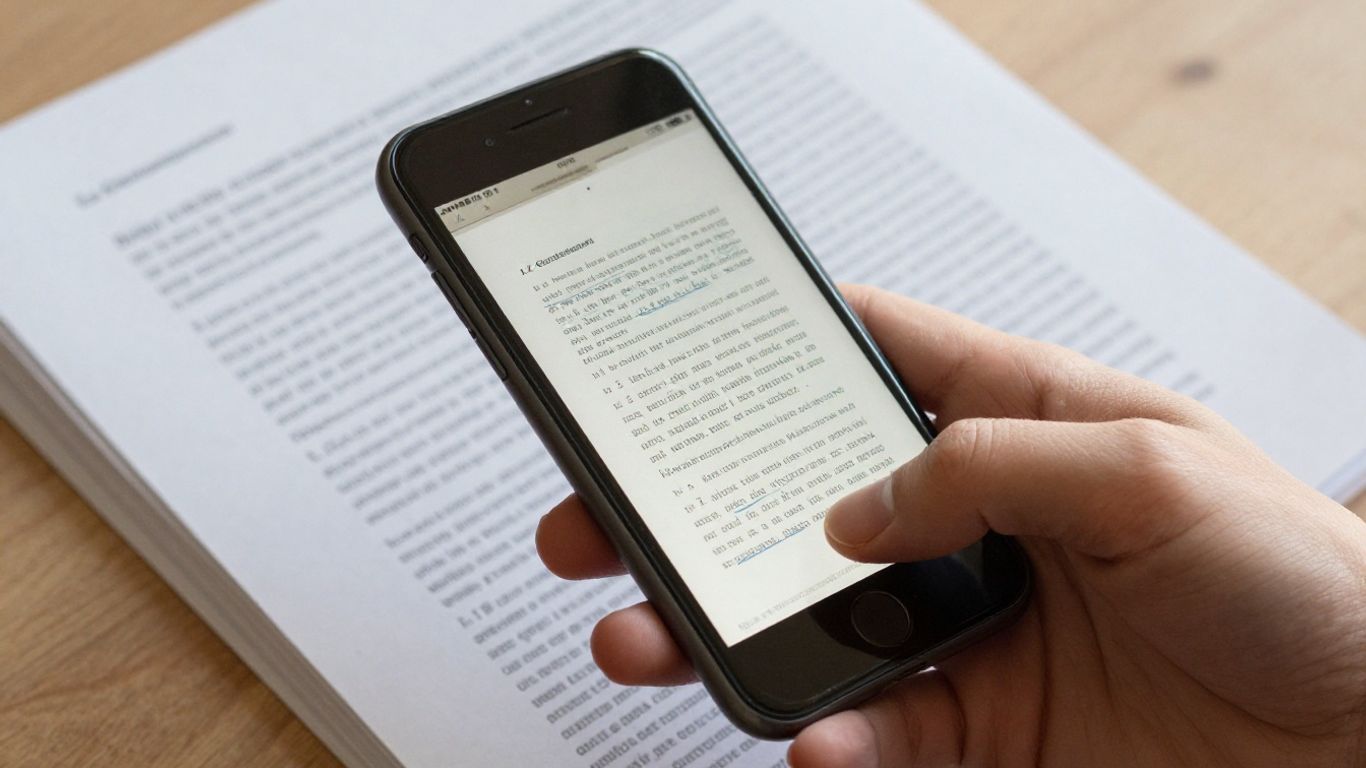
Sometimes, you just need to get a paper document into a digital format, and you don't have a big scanner lying around. That's where your phone really shines. Apps designed for productivity can turn your phone into a pretty capable scanner, especially when you have multiple pages to deal with.
Using Microsoft Office for Seamless Scans
Microsoft Office isn't just for spreadsheets and presentations anymore. The Office app on your phone has a built-in scanner that's surprisingly good. It's great for when you need to digitize a few pages quickly, like receipts for an expense report or maybe a contract you need to sign and send back. The process is straightforward, letting you capture each page and then combine them.
Here's a quick rundown of how it works:
- Open the Microsoft Office app.
- Look for the 'Actions' button, usually at the bottom.
- Select 'Scan to PDF'.
- Scan your first page. When you're ready for the next one, tap 'Add New'.
- Keep scanning until you've got all your pages. When you're done, you'll see an option to finish up.
- You can then review, edit, and crop your scans before saving.
This makes it easy to keep all your scanned pages together in one file, ready to be shared. It's a handy tool for anyone who needs to handle paper documents on the go.
Combining Scans into a Single PDF
Most productivity apps that offer scanning will automatically group your scanned pages into a single document. When you use the Microsoft Office app, for instance, after you scan each page and add it, the app keeps them in order. Once you've captured all the pages you need, you'll typically find an option to finalize the document. This usually involves tapping a button that signifies you're finished scanning, which then compiles all the individual scans into one PDF file. You can then save this PDF or share it directly from the app. It’s a pretty neat way to avoid having a bunch of separate image files that you then have to manually stitch together later. For more options on scanning, you might look into apps like Adobe Scan.
Organizing and Sharing Your Combined PDFs
Once you've got your multi-page document scanned and saved as a single PDF, the next step is usually organizing and sharing it. Most apps will let you name your file and choose where to save it, either on your phone or in cloud storage. Sharing is typically done through the standard 'share' icon, which opens up options to send via email, messaging apps, or other services. This means you can quickly get that scanned report or signed document to whoever needs it, without needing a computer. It really streamlines the process of handling paperwork in a digital world.
Handling paper documents digitally doesn't have to be complicated. Using apps already on your phone can save you time and hassle, turning stacks of paper into organized digital files with just a few taps. This is especially useful when you're away from your desk or a traditional scanner.
Utilizing Cloud Storage for Document Digitization
Sometimes, you just need to get a paper document into a digital format, and you don't have a scanner handy. That's where your phone and cloud storage come in. It's a pretty straightforward process, really. You can use apps you probably already have to turn those physical papers into digital files.
Scanning with Google Drive
Google Drive is a super handy tool for this. It's not just for storing files; it has a built-in scanner. You open the Drive app, tap the camera icon, and point your phone at the document. The app helps you line it up and takes the picture. It's designed to make sure you get a clear shot of whatever you're scanning, whether it's a receipt or a page from a report. This makes digitizing documents on the go incredibly simple.
Saving Scans as PDFs
After you take the picture, Drive lets you adjust it – crop, rotate, whatever it needs. Then, you choose to save it as a PDF. This is key because PDFs keep the formatting just right, no matter what device someone opens it on. You can even name the file and pick which folder in your Drive it goes into. It's all about keeping things organized right from the start. You can also save them as JPGs if that works better for your needs.
Accessing Your Scans Across Devices
The best part about using cloud storage like Google Drive is that your scanned documents aren't stuck on your phone. Once they're saved in Drive, you can get to them from your computer, tablet, or any other device where you're logged into your Google account. This means you can easily pull up that scanned contract or receipt whenever you need it, wherever you are. It’s a big help for staying on top of paperwork without needing to carry physical copies around. For other scanning needs, apps like Genius Scan can also be quite useful.
Advanced Scanning Techniques for Specific Needs
Sometimes, you've got specific documents that need a bit more attention than just a quick scan. Whether it's a whole book, a stack of receipts, or important contracts, your phone can handle it. You don't need a big, clunky scanner anymore.
Scanning a Book to PDF on iPhone
Got a book you want to digitize? It's totally doable with your iPhone. The built-in Notes app has a scanning feature that's surprisingly good for this. Just open a note, tap the camera icon, and select 'Scan Documents'. Hold your phone steady over the page, and it'll automatically detect the edges. You can then scan page after page, and it will stitch them all together into one PDF. It takes a bit of time, but it's way easier than retyping everything.
Digitizing Receipts and Contracts
For things like receipts and contracts, speed and clarity are key. You can use apps like Microsoft Office Lens or even Google Drive's scan function. These apps are great because they automatically adjust lighting and perspective, making sure your text is readable. For contracts, always double-check that all signatures and important details are clear before saving. This is where having a good scan really matters, especially if you need to refer back to it later or share it with someone else. You can even use these tools to sign documents digitally before scanning, which is handy when you're on the go.
Creating PDFs for Expense Reports
Expense reports can be a pain, but scanning receipts makes it much simpler. Most phones have a built-in scanner, or you can use a dedicated app. The trick is to be organized. Scan receipts as you get them, and name them clearly (e.g., 'Lunch_ClientMeeting_2026-06-15'). Many apps let you group these scans into a single PDF, which is perfect for submitting your report. Some apps even have features to extract data from receipts, though that's a bit more advanced. For a basic expense report, just getting clear images into one PDF is usually enough. You can find some great tips on mobile security scanners if you're concerned about protecting sensitive financial documents.
When scanning documents, especially those with fine print or important details, take a moment to zoom in on the preview. Make sure the text is sharp and there are no weird blurs or shadows obscuring anything. A quick check now saves a lot of hassle later.
Optimizing Your Mobile Scanning Workflow
Making sure your scanned documents are clear and easy to read is key. It’s not just about getting the job done, but getting it done right the first time. Think about it: nobody wants to squint at a blurry receipt or try to decipher a smudged signature. A little attention to detail now saves a lot of headaches later.
Ensuring Clear and Legible Scans
Getting good scans from your phone is simpler than you might think. It mostly comes down to a few basic practices. Good lighting is your best friend here; avoid shadows and glare.
Here’s a quick checklist:
- Lighting: Find a well-lit area. Natural light is often best, but avoid direct sunlight which can cause glare. If you're indoors, position yourself so your phone's light doesn't reflect off the page.
- Stability: Hold your phone steady. A slight shake can blur the image. If you have trouble keeping it still, try bracing your elbows or using a small tripod.
- Angle: Position your phone directly above the document. Shooting from an angle can distort the text and make it look skewed.
- Background: Use a plain, contrasting background for your document. This helps the scanning app identify the edges of the page more accurately.
Paying attention to these small details can make a huge difference in the quality of your final PDF. It’s about creating a clean digital copy that’s as good as, if not better than, the original paper.
Quickly Accessing Scan Features
Speed matters when you're on the go. Many phones and apps offer shortcuts to get you scanning faster. For instance, you can add a "Drive scan" widget directly to your Android home screen. This lets you start a scan with just a tap, without even opening the full Google Drive app. Similarly, some camera apps have a dedicated scan mode you can access quickly. Knowing these shortcuts can save you precious seconds when you need to capture information fast.
Integrating Scans with Other Productivity Tools
Once you've got your scans, what's next? The real power comes when you connect them to your other work tools. For example, you can scan documents directly into Microsoft Office apps, making them ready for editing or sharing. Or, use Google Drive to store your PDFs, making them accessible from any device. Some platforms even let you connect QR code scan data to your CRM system using dynamic QR codes, which can automate follow-up actions using platforms like xcan.it. This kind of integration turns simple scans into actionable business intelligence. Thinking about an optimized workflow for manufacturing? There are specific techniques for that too, focusing on preparation and calibration for high-quality 3D data.
Conclusion
So, there you have it! Scanning multiple pages into a single PDF on your phone is totally doable, whether you use your phone's camera, a handy app, or cloud storage. It really makes life easier when you need to share documents or keep them organized. Give these methods a try and see how much simpler managing your paperwork can be.
Frequently Asked Questions
Can I really scan multiple pages into one PDF using just my phone?
Yep, absolutely! Most smartphones have built-in tools or apps that let you take pictures of pages one after another and then put them all together into a single PDF file. It's pretty neat.
What's the easiest way to combine scans into a PDF?
Using an app is usually the simplest. Apps like Microsoft Office or Google Drive have scan features that guide you through capturing each page and then saving them as one PDF. It's way faster than trying to do it manually.
Do I need a special app to scan documents?
Not always! Sometimes your phone's regular camera app can do basic scans. But for combining multiple pages easily, apps like Microsoft Office or Google Drive are super helpful. They're often free too.
How do I scan a whole book into one PDF on my iPhone?
For books, it can take a bit longer. You'll want to use a scanning app that lets you add pages one by one. You might need to adjust the lighting and hold your phone steady for each page to get a good result. Some apps are better for this than others.
Will my scans look professional?
They can! If you make sure the lighting is good and you hold your phone straight, your scans will look pretty clear. Most apps also let you crop and adjust the scans afterward so they look neat and tidy.
Can I access my scanned PDFs from my computer?
Definitely. If you use cloud storage like Google Drive or OneDrive, your scanned PDFs will be saved there. You can then log in to your account on your computer and download or view them anytime.