
Adobe Scan vs DocScan Pro: Which Is Better for Everyday Scanning?
After looking at Adobe Scan and other document scanner apps, here are the main things to remember when picking the right one for you.
Key Takeaways
- Adobe Scan is a top choice for its powerful features, good scan quality, and integration with other Adobe tools, even in its free version.
- Many apps offer similar core features like edge detection and multi-page scanning, but the quality can vary.
- If you need text recognition (OCR), check if it's free or requires a paid upgrade, as this is a common feature that costs extra.
- Consider how you'll use the scans: for simple archiving, editing, or sharing with cloud services. Some apps are better for specific needs.
- There are many free Adobe Scan alternatives, but they might have limitations like ads, watermarks, or fewer advanced features compared to paid options.
Core Scanning Capabilities Compared
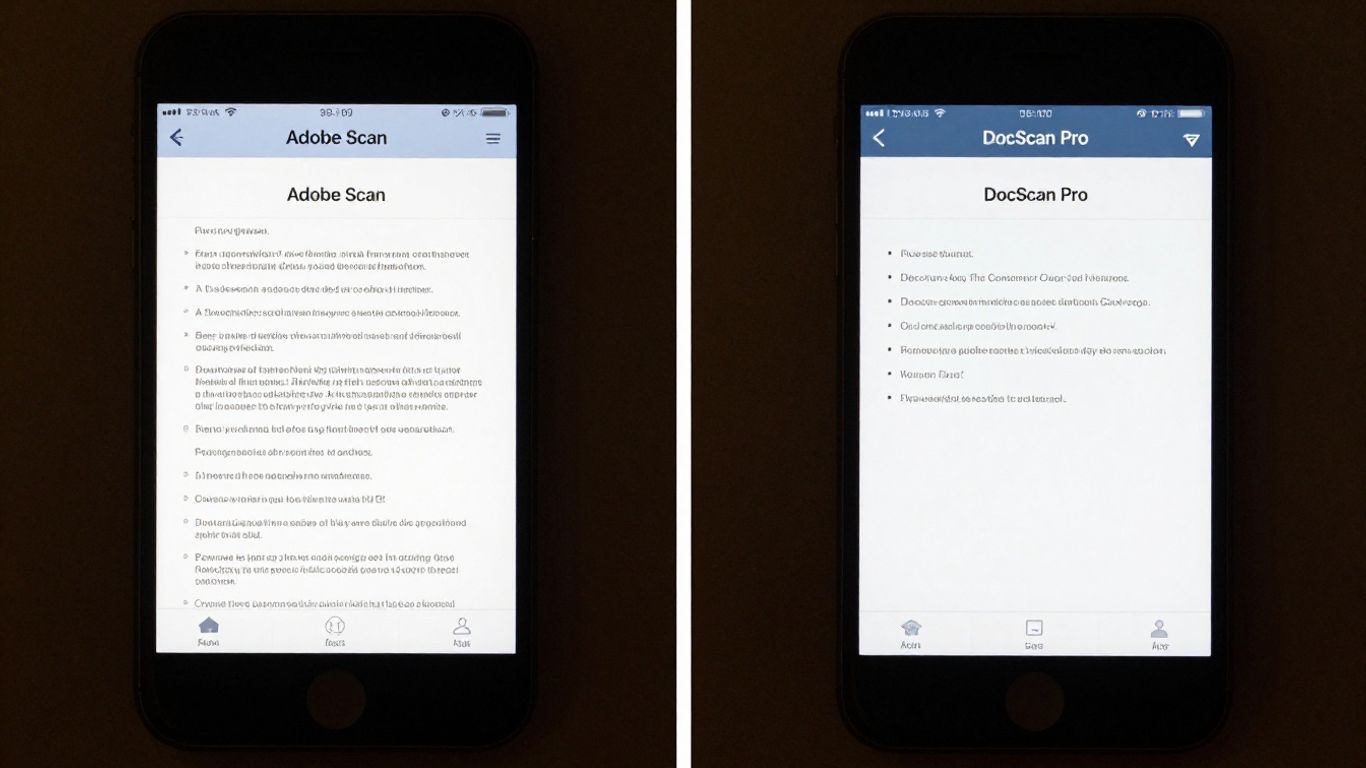
When you're just trying to get a document from paper to digital, the basics really matter. We're talking about how well the app can see the edges of your paper, how clear the final scan looks, and how fast you can get through a stack of pages. These aren't fancy features, but they make a huge difference in your day-to-day use.
Edge Detection And Clarity
Both Adobe Scan and DocScan Pro do a pretty good job of figuring out where your document starts and ends. They use your phone's camera to find the edges, and usually, they get it right. Adobe Scan, in particular, has AI that helps it clean up the image, getting rid of shadows and making text look sharper. It's like magic, but it's just good programming. DocScan Pro is also solid here, though sometimes it might need a little nudge from you to get the borders perfect. The goal is a scan that looks like you carefully placed it on a flatbed scanner, not like a quick phone picture.
Scan Quality And Color Accuracy
This is where things can get a bit different. Adobe Scan tends to produce scans that are very true to the original colors. If you're scanning a colorful flyer or a photo, it usually looks pretty accurate. DocScan Pro is also good, but sometimes its color processing can be a bit more aggressive, making colors pop a little more than they actually are. For most documents, this isn't a big deal, but if color is super important, it's something to keep in mind. Both apps try to make text really crisp, which is great for readability.
Scanning Speed And Efficiency
If you have a lot of papers to scan, speed is king. Adobe Scan has a "high-speed scanning" mode that's designed for this. You can zip through pages pretty quickly. DocScan Pro is also quite fast, and its interface is straightforward, so you don't waste time figuring things out. For single pages, the difference is barely noticeable. But when you're dealing with a big pile, every second counts. It's about how quickly the app can capture, process, and let you move to the next page without hiccups. A smooth workflow here means less time spent scanning and more time actually using your documents, maybe even integrating them into your workflow with tools like Adobe Acrobat.
The best scanning apps make it feel like you're not even trying. They just grab the document, make it look good, and hand it over, ready for whatever you need to do next. It's all about removing the friction from turning paper into something useful.
Feature Sets For Everyday Use
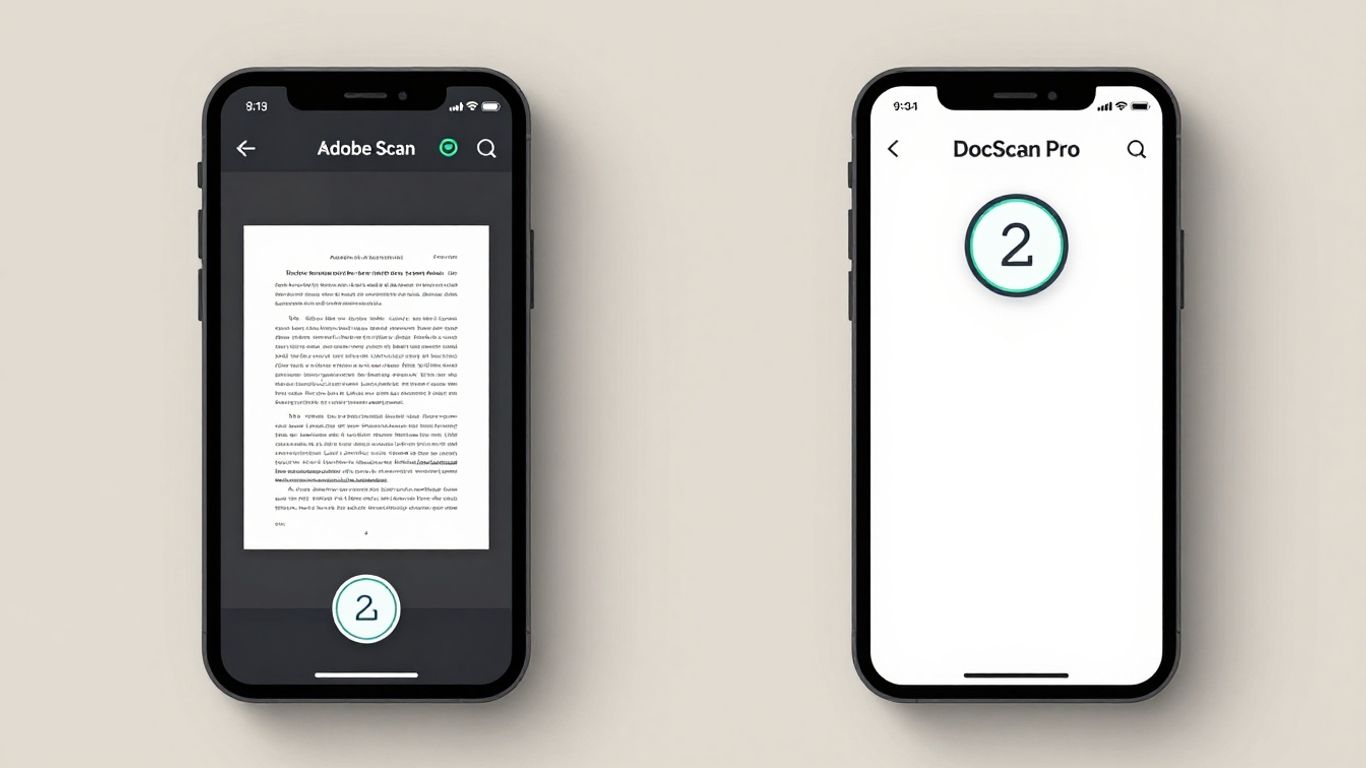
When you're just trying to get a document into your phone or computer without a lot of fuss, certain features really make a difference. We're talking about things that help you get the text out, handle longer documents, and maybe even mark things up a bit.
OCR Text Recognition Accuracy
Optical Character Recognition, or OCR, is basically the app's ability to read the text in your scanned image. This is super handy if you want to copy text from a document, search within a scanned PDF, or even translate something. Both Adobe Scan and DocScan Pro offer OCR, but how well they do it can vary.
- Adobe Scan: Generally, Adobe Scan's OCR is pretty solid. It's built into the free version, which is a big plus. You can scan a document, and it automatically makes the text searchable. If you need to copy text, it usually gets it right, though sometimes very small print or unusual fonts can trip it up.
- DocScan Pro: DocScan Pro also has OCR, but it's often a premium feature. The accuracy is usually good, comparable to Adobe Scan for standard documents. However, if you're relying heavily on OCR, you might need to check if it's included in the version you're considering or if it requires an extra purchase.
The accuracy of OCR can depend a lot on the quality of your scan and the complexity of the original document.
Multi-Page Document Handling
Nobody wants to scan each page of a report one by one and then manually stitch them together. Good scanning apps make this process simple.
- Adobe Scan: This app handles multi-page documents really well. You can just keep scanning pages, and it adds them to the same document. It's pretty straightforward and doesn't feel like a chore. You can reorder pages before saving, too.
- DocScan Pro: DocScan Pro also supports multi-page scanning. You can capture multiple pages in sequence and combine them into a single PDF file. It's designed to be efficient for longer documents like contracts or presentations.
Editing And Annotation Tools
Sometimes, you need to do more than just scan. Maybe you need to highlight a key section, add a note, or even just crop out a stray thumb.
- Adobe Scan: Adobe Scan has some basic editing tools. You can crop and rotate pages, of course. It also has a 'Magic Eraser' tool that's pretty neat for cleaning up smudges or unwanted marks. For more in-depth editing, like changing the text itself, you'll likely need to export to another Adobe app, but for quick fixes, it's decent.
- DocScan Pro: DocScan Pro usually offers a good set of editing tools. This can include cropping, rotating, and sometimes filters to improve scan quality. Annotation features might be more basic, perhaps allowing you to draw or add simple text boxes. If you need advanced PDF editing, you might find yourself looking elsewhere, but for everyday markups, it should do the trick.
When choosing between apps, think about what you'll actually do with the scans after they're made. If you just need a digital copy, basic scanning is fine. But if you plan to mark them up, extract text, or combine many pages, those specific features become much more important.
For quick text grabs on the go, tools like Google Lens can be surprisingly useful, even if they aren't full-fledged document scanners. They excel at pulling text from images rapidly, which is great for translating signs or copying a phone number you see on a flyer. However, they typically lack the robust PDF creation and organization features found in dedicated apps like Adobe Scan.
User Experience And Interface
When you're just trying to get a document scanned quickly, the app's interface and how easy it is to use really matter. Nobody wants to spend ages figuring out how to get a clean scan. Let's break down how Adobe Scan and DocScan Pro stack up in this department.
Ease of Use and Navigation
Adobe Scan generally keeps things pretty simple. When you open the app, it's usually ready to scan right away. The buttons are clear, and you don't have to dig through a bunch of menus to find what you need. It feels like it was designed for people who just want to get the job done without a fuss. You can quickly adjust the scan after it's taken, like cropping or changing the color, and save it. It's a pretty smooth process, even if you're not super tech-savvy. For basic scanning needs, it's hard to beat the straightforwardness of apps like Genius Scan.
Automatic Capture Versus Manual Control
This is where things can get interesting. Adobe Scan has a really good automatic capture feature. You point your phone at the document, and it often just knows when to take the picture, snapping it perfectly framed. This is super handy when you're trying to scan a bunch of pages quickly. However, sometimes it can be a little too eager, taking a picture when you don't want it to, or missing the perfect shot if the lighting is a bit off. DocScan Pro, on the other hand, might give you a bit more manual say. While it also has auto-capture, it might offer more immediate options to retake or fine-tune the shot right away, giving you more control if the automatic system doesn't get it quite right. It's a trade-off between speed and precision.
Integration With Cloud Services
This is a big one for many people. Adobe Scan plays nicely with other Adobe products, which is great if you're already in that ecosystem. More importantly, it integrates well with cloud storage services like Google Drive and Dropbox. You can set it up to automatically save your scans to a specific folder, which is a lifesaver for keeping your digital documents organized. DocScan Pro also offers cloud integration, but it's worth checking which services it supports and how easy it is to set up those connections. For those who rely heavily on cloud backups, Adobe Scan's robust integration is a major plus.
The best apps make you forget you're even using software. They just work, letting you focus on the task at hand. When an app feels intuitive, with clear buttons and logical steps, it saves you time and frustration. This is especially true for scanning apps, where speed and simplicity can make a big difference in your daily workflow.
Advanced Functionality And Modes
Beyond the basic scanning, both Adobe Scan and DocScan Pro offer some neat tricks up their sleeves for more specific needs. It's not just about taking a picture of a document anymore; these apps are getting smarter.
Specialized Scanning Modes
Apps like these often have modes tailored for particular tasks. For instance, a 'Book Mode' is designed to handle the curve of a book's spine, making pages lie flatter and reducing distortion. This is a big deal if you're trying to digitize pages from a physical book without damaging it or getting weird shadows. Adobe Scan has been improving its AI to help with this, automatically straightening pages even in regular document mode now.
Other specialized modes might include things like:
- High-Speed Scan: For quickly capturing multiple pages in rapid succession.
- Magic Eraser: A feature that uses AI to remove unwanted marks like smudges, pencil lines, or even your thumb from the scan. This is usually a premium feature, but it can make a scanned document look much cleaner and more professional.
- Extract Pages: This allows you to pull out specific pages from a larger scanned document, creating a new, smaller PDF. It's super handy for sharing just a section of a report or contract without sending the whole thing.
Business Card Scanning
Scanning business cards is a common need, and apps handle this differently. Some apps will just capture the image, while others go a step further. The better ones will use OCR to pull out the contact information – name, phone number, email, company – and then offer to save it directly to your phone's contacts. This saves a ton of manual typing. While both apps likely have some form of this, the accuracy of the OCR for business cards can vary. It's worth testing with a few of your own cards to see which one gets it right more often.
Book Scanning Features
As mentioned, book scanning is a key area where specialized modes shine. The goal here is to get a flat, readable image of each page. This often involves:
- Automatic Page Detection: Identifying where one page ends and the next begins, even with the book spine in the way.
- De-skewing and Flattening: Correcting for the natural curve of the page when it's not lying perfectly flat.
- Lighting Adjustments: Trying to compensate for shadows cast by the book or your hands.
Some apps might offer a dedicated 'Book' mode that guides you through scanning facing pages or individual pages, optimizing the process for this specific use case. It's about making a curved surface look like a flat scan.
For those who frequently digitize books or documents with similar binding issues, these advanced features can be a real time-saver and significantly improve the final output quality. If you're looking for a top-rated app that handles these tasks well, you might want to check out reviews of scanner apps. The ability to open PDFs directly in Adobe Scan and use its editing tools is also a big plus for managing existing documents. Adobe Scan is a top choice for many users.
Pricing And Value Proposition
When you're looking at apps like Adobe Scan and DocScan Pro, the cost is definitely something to think about. Nobody wants to spend a ton of money on something they'll only use now and then, right?
Free Version Capabilities
Adobe Scan really shines here. The free version gives you a whole lot to work with, including its core scanning features, OCR for text recognition, and the ability to save multi-page documents. You can scan, clean up images, and export them as PDFs or JPEGs without paying a dime. This makes it a super accessible option for most people just needing to digitize the occasional document. It integrates with Adobe Document Cloud, giving you some basic cloud backup too.
Premium Subscription Benefits
Of course, there's a premium tier if you need more. For Adobe Scan, the premium subscription (\(9.99/month or \)19.99/year for Adobe Scan Plus) unlocks things like password protection for your scanned files, more OCR pages per month (up from 25 to 100), and the ability to edit scanned documents directly within the app. If you're constantly dealing with sensitive information or need to make quick edits to scanned text, these features might be worth the extra cash. It's also worth noting that Adobe Scan's integration with other Adobe products, like Acrobat, is a big draw for those already in the Adobe ecosystem.
Cost-Effectiveness For Users
So, is it worth it? For casual users, the free version of Adobe Scan is incredibly generous and likely all you'll ever need. You get robust scanning and OCR capabilities without any upfront cost. If you find yourself hitting limits or needing those advanced editing features regularly, then the premium subscription becomes a consideration. Compared to some other apps that lock down basic functionality behind a paywall, Adobe Scan offers a really solid free experience. It's a good balance, providing a powerful tool that doesn't force you to pay just to get started. You can even find other apps that offer similar functionality, like Genius Scan, though their free tiers might be more limited in features like OCR.
Alternatives To Adobe Scan
While Adobe Scan is a solid choice for many, it's not the only game in town. Sometimes you might be looking for something a bit different, maybe a free option that doesn't push subscriptions, or an app that integrates better with a different cloud service. Luckily, there are plenty of other document scanner apps out there that can get the job done.
Exploring Document Scanner Apps
When you start looking around, you'll find a whole bunch of apps designed to turn your phone into a scanner. Some are super simple, focusing just on capturing the document and saving it as a PDF. Others pack in more features, like advanced editing tools, different export options, or even specialized modes for things like business cards or books. It really depends on what you need most. For instance, some apps might offer better edge detection in tricky lighting, while others focus on speed for scanning a large stack of papers quickly. You can find a comprehensive list of over 100 applications that provide similar functionality to Adobe Scan, catering to various user needs for document scanning here.
Finding A Free Adobe Scan Alternative
If you're trying to avoid subscriptions or just want a no-frills free experience, there are definitely options. Some apps are completely free with no hidden costs, offering core scanning features like good OCR and multi-page handling. Others might have a free tier that's quite generous, maybe with a small watermark or limited cloud storage, but still perfectly usable for everyday tasks. It's worth checking out apps like FairScan or MakeACopy, which are often mentioned as solid free alternatives. Remember, the goal is to digitize your documents without breaking the bank or getting annoyed by constant upgrade prompts.
Document Scanning Without Adobe Ecosystem
Not everyone is deep into the Adobe ecosystem, and that's totally fine. Many scanner apps integrate with other cloud storage services like Google Drive, Dropbox, or OneDrive. This can be a big plus if you already use one of those services heavily. You might also find apps that offer more direct export options to your computer or other devices without needing a cloud intermediary. Some users prefer apps that give them more manual control over the scanning process, rather than relying solely on automatic features.
Choosing an alternative often comes down to personal preference and workflow. What works perfectly for one person might feel clunky to another. It's a good idea to try out a couple of different apps to see which one feels most natural for your daily scanning needs.
Here are a few things to consider when looking at alternatives:
- OCR Accuracy: How well does it convert scanned text into editable text? This is super important if you plan to search or copy text from your scans.
- Export Options: Can you save your scans in the formats you need (PDF, JPG, etc.) and send them to the cloud services you use?
- User Interface: Is the app easy to figure out and use quickly? A confusing interface can make scanning feel like a chore.
- Special Features: Do you need specific modes like book scanning or business card capture? Not all apps offer these.
Ultimately, the best app is the one that fits your routine and makes scanning documents as painless as possible. Don't be afraid to experiment until you find your perfect match. For example, if you're an iPhone user, you might find the built-in Notes app surprisingly capable for quick scans, though it has its limitations.
Conclusion
So, which app takes the crown for everyday scanning? Adobe Scan really shines with its smart features and smooth performance, especially if you're already in the Adobe world. It's fast, accurate, and the free version does a lot. But if you're looking for something simpler, or maybe don't want to sign up for another account, apps like Genius Scan offer a clean experience. And if you're on iOS, the built-in Notes app can be a quick, free option for basic needs, though it's a bit clunky. Ultimately, the 'best' app depends on what you need most: advanced features, simplicity, or just a no-frills way to get documents into your phone. Don't be afraid to try a few out – many have free versions that let you test the waters before committing.
Frequently Asked Questions
What is the best free app for scanning documents like Adobe Scan?
Adobe Scan itself has a really good free version that does a lot. But if you want an Adobe Scan alternative that's free, Genius Scan is a solid choice for simple scanning. The Apple Notes app on iPhones also has a built-in scanner that's free, though it's not as fancy.
Can I scan documents without using Adobe's services?
Absolutely! Many apps let you scan without needing an Adobe account. Apps like Genius Scan, Microsoft Lens, or even your phone's built-in camera app (like on Android or iOS) can scan documents and save them without connecting to Adobe's cloud.
Are there any free scanners that are as good as Adobe Scan?
Adobe Scan's free version is hard to beat because it includes OCR (text recognition) and good quality scans. Some other apps might be simpler or have fewer ads in their free versions, but you might miss out on features like OCR or advanced editing without paying.
How do I choose between Adobe Scan and other scanning apps?
Think about what you need most. If you want great OCR, easy cloud saving, and you don't mind an account, Adobe Scan is great. If you want something super simple with no account needed, or you want to avoid Adobe's ecosystem, look at apps like Genius Scan or Microsoft Lens.
What does OCR mean, and why is it important for scanning apps?
OCR stands for Optical Character Recognition. It's like magic that lets the app read the text in your scanned picture. This means you can search for words within your scanned document or copy and paste the text, which is super handy if you need to edit or share information.
Do I really need a paid version of a scanning app?
For most people, the free version of Adobe Scan or other good apps is usually enough. You might only need a paid version if you scan a lot of documents, need advanced features like editing scanned text directly, or want extra security like password protection for your files.