
How to Password-Protect a PDF on Your iPhone (Without a Computer)
Here are the main points to remember about protecting your PDF files on your iPhone:
Key Takeaways
- The iPhone's Files app offers a built-in way to password protect PDFs, but requires iOS 16 or later.
- Third-party apps like Adobe Acrobat Reader and PDFelement provide more advanced options for PDF security.
- Always use strong, unique passwords and consider a password manager to keep track of them.
- Password-protecting PDFs is important for sensitive information like personal details or work projects.
- If you forget your password, you may not be able to access your file again, so be careful.
Securing Your Documents with the Files App
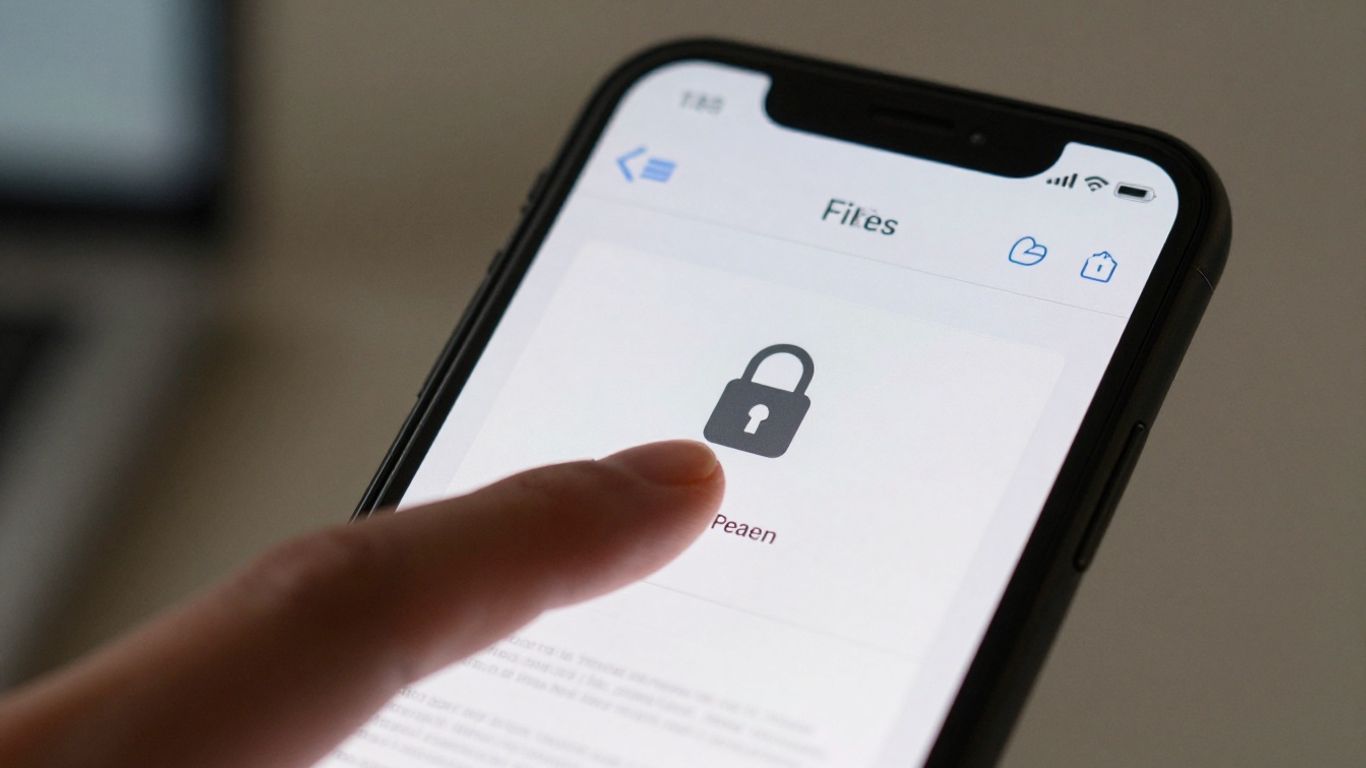
You know, sometimes you just need to keep a document private, right? Maybe it's a sensitive report for work, or perhaps some personal financial stuff. Luckily, your iPhone has a built-in way to handle this without needing any extra apps. It's all thanks to the Files app, which is pretty handy.
Utilizing the Built-In Lock PDF Feature
Apple's Files app has a neat trick up its sleeve: it can password-protect your PDFs directly. This means you don't have to download anything new. It's a straightforward process, but there are a couple of things to keep in mind.
- Open the Files app on your iPhone.
- Navigate to where your PDF is saved. This could be in iCloud Drive, 'On My iPhone', or another cloud service you've connected.
- Tap on the PDF file you want to secure. It will open in a preview.
- Look for the share icon (the square with an arrow pointing up) in the bottom left corner and tap it.
- Scroll through the options that appear and select 'Lock PDF'. If you don't see it right away, you might need to tap 'Edit Actions' and add it.
- You'll then be prompted to create a password. Make it something strong, but also something you'll remember. You'll need to enter it twice to confirm.
- Hit 'Done' at the top. You'll see a little padlock icon appear next to the file name in the Files app, showing it's now protected.
Remember, if you forget this password, there's no getting it back. The file will be locked forever. So, pick a good one and maybe jot it down somewhere safe, like a password manager.
Understanding iOS Version Requirements
This built-in 'Lock PDF' feature isn't available on every iPhone. You'll need to be running iOS 15 or a newer version of the operating system. If your iPhone is older or hasn't been updated in a while, you might not see the 'Lock PDF' option. To check your iOS version, go to Settings > General > About. If you're on an older version, you might need to update your iPhone's software first, or consider using a third-party app if updating isn't an option for you. It's a good idea to keep your iOS software updated for the latest features and security patches.
Locating Your PDF for Protection
Finding the PDF you want to protect is usually the easiest part. The Files app organizes everything neatly. Whether you saved the document directly to your iPhone's storage ('On My iPhone'), in your iCloud Drive, or even in a connected service like Google Drive or Dropbox, the Files app acts as a central hub. Just tap into the relevant folder or location within the Files app, find your PDF, and then follow the steps to lock it. It's all about knowing where you saved it in the first place.
Leveraging Third-Party Applications for PDF Security
So, the built-in Files app is pretty neat for basic protection, but what if you need more advanced features or just prefer a different workflow? That's where third-party apps come in. They often offer more granular control over your PDF security, sometimes even letting you set different passwords for viewing versus editing. It's like having a digital bodyguard for your documents.
Password Protecting PDFs with Adobe Acrobat Reader
Adobe Acrobat Reader is a name most people recognize, and for good reason. It's a robust tool for managing PDFs, and thankfully, it lets you add password protection right from your iPhone. It's a pretty straightforward process.
- Open the Adobe Acrobat Reader app on your iPhone.
- Go to the 'Tools' section and select 'Protect'.
- You'll then decide if you want to encrypt the file with a password you create or a certificate. You can also choose to restrict editing.
- Set your secure password, then hit 'OK' and 'Save'.
This app is a solid choice if you're already using it for other PDF tasks. It makes adding a layer of security feel like just another step in your document workflow.
Creating Encrypted PDFs Using PDF Reader Pro
PDF Reader Pro is another popular option that packs a lot of features into a mobile app. If you're dealing with sensitive information regularly, this might be worth checking out. It's designed to be user-friendly, which is always a plus when you're trying to get things done on the go.
- Launch PDF Reader Pro and open the PDF you want to secure.
- Look for an 'Encrypt' option, usually found under a 'More' or settings menu.
- Create and confirm your password.
- Save the file.
It's a good way to keep your private files private, especially if you're sharing them with a wider group and only want certain people to see the full content. You can find PDF Reader Pro in the App Store.
Employing PDFelement for Enhanced Security
PDFelement aims to be an all-in-one solution for your PDF needs, and that includes security. It offers a clean interface and a good range of functions, making it a capable tool for password-protecting your documents on your iPhone.
- Open your PDF within the PDFelement app.
- Tap the '...' menu, usually in the top right corner.
- Select 'Set Password' or a similar option.
- Enter and confirm your desired password.
- Save the changes.
While these apps add a great layer of security, remember that no system is completely foolproof. Always use strong, unique passwords and consider the sensitivity of the information you're protecting.
These third-party apps can really make a difference when you need more than just basic password protection. They offer flexibility and often more advanced options that the built-in tools might not have.
Best Practices for Password Protection
So, you've decided to lock down your PDF files on your iPhone. That's a smart move, especially for anything sensitive. But just slapping a password on it isn't always enough. We need to think about how and when we're doing it, and what kind of password we're using. It’s not rocket science, but a little thought goes a long way.
When to Password Protect Your PDF Files
Think about what's inside your document. If it's just a grocery list, maybe it doesn't need a password. But if it contains:
- Personal identification details (like your address or social security number)
- Financial information (bank statements, tax forms)
- Confidential work documents or project plans
- Student exam papers or graded assignments
- Any private correspondence you wouldn't want just anyone seeing
...then yes, you absolutely should be adding a password. It's a simple step that adds a significant layer of privacy and security. For instance, if you're sharing a PDF with sensitive employee data, password protection is a must. You can learn more about safeguarding documents with tools like Adobe Acrobat.
Crafting Strong and Memorable Passwords
This is where a lot of people slip up. A password like "12345" or "password" is practically an open invitation. You want something that's hard for others to guess but not impossible for you to remember. Try mixing:
- Uppercase and lowercase letters
- Numbers
- Symbols (like !, @, #, $)
Avoid using easily guessable information like your birthday, your pet's name, or common words. A good strategy is to think of a phrase you like and then modify it. For example, "MyDogLovesBones!" could become "mD0gL0v3sB!"
Remember, if you forget your password, there's usually no way to get it back. This is especially true when using built-in iOS features. So, make sure it's something you can recall, even if you haven't used the file in a while.
The Importance of Password Management
Okay, so you've got a strong password. Now what? Don't write it down on a sticky note stuck to your phone! Think about how you'll keep track of it. If you're protecting multiple documents, using the same password everywhere is a bad idea. If one gets compromised, they all do. Consider using a password manager app, which can generate and store strong, unique passwords for all your protected files. This way, you only need to remember one master password for the manager itself. Keeping your documents secure is a continuous process, and proper management is key to keeping sensitive information safe.
Managing Password-Protected PDFs
So, you've gone and locked down your important documents on your iPhone. That's smart! But what happens next? You'll need to know how to get back into them, or maybe change things up later. It's not super complicated, but there are a few things to keep in mind.
Unlocking Password-Protected Documents
When you need to open a PDF that you've secured, the process is pretty straightforward. You'll usually do this right within the app you used to lock it, or sometimes directly through the Files app. Just tap on the PDF file you want to open. If it's protected, you'll see a prompt asking for the password. Type it in, and you're good to go. Remembering this password is key, because if you forget it, there's no getting that file back.
Here's a quick rundown of what to expect:
- Locate the file: Find the PDF in your Files app or within the specific app you used (like Adobe Acrobat Reader).
- Tap to open: Select the file. A password entry screen will appear.
- Enter the password: Carefully type in the password you set.
- Access granted: The PDF will open, allowing you to view its contents.
Changing or Removing Existing Passwords
Life happens, and sometimes you need to update your security. Maybe you've shared the document with someone new, or you just want a different password. Most apps that let you lock a PDF will also let you change or remove the password. You'll typically need to open the file first (which means entering the current password) and then look for an option like 'Change Password' or 'Remove Security' within the file's settings or menu. It's usually pretty intuitive, often found under a 'More' or 'Tools' menu. Keep in mind that if you used the built-in Files app feature, you might need to re-save the file without the password protection. For third-party apps, check their specific instructions, as some might require a subscription for these features, like Adobe Acrobat Premium.
Accessing Secured Files on Your iPhone
Accessing your secured files is all about knowing where they are and having the password handy. If you used the Files app, your PDFs are likely in your 'On My iPhone' storage or a specific folder you created. If you used an app like PDFelement, the file might be stored within that app's own file system. It's a good idea to keep a list of which apps you used for which files, just to avoid confusion. For example, if you're trying to access a PDF that was originally secured using the Files app's built-in feature, you'll need to make sure you're looking in the right place within the Files app itself.
It's really important to be organized with your password-protected files. If you have a lot of them, maybe jot down which password goes with which document in a secure note or password manager. Losing access to a file because you forgot the password is a frustrating experience that's easily avoidable with a little planning.
Conclusion
Securing your PDF files on your iPhone is more accessible than you might think. Whether you're using the built-in Files app or opting for third-party tools like Adobe Acrobat Reader or PDFelement, you have options. Remember to choose strong passwords and keep them safe. By taking these simple steps, you can keep your sensitive documents protected wherever you go.
Frequently Asked Questions
Do I need a special app to password protect a PDF on my iPhone?
Not always! If your iPhone has iOS 16 or a newer version, you can use the built-in Files app to lock your PDFs. It's pretty straightforward. But, if you want more options or have an older iOS version, apps like Adobe Acrobat Reader or PDFelement are great choices.
Why can't I find the 'Lock PDF' option in my iPhone's Files app?
This usually happens for a couple of reasons. First, the 'Lock PDF' feature is only available on iOS 16 and later. Make sure your iPhone is updated. Second, you can only lock PDFs that are saved directly on your iPhone or iPad, not ones stored in iCloud Drive. Move the file to your device storage first.
What makes a strong password for my PDF?
A strong password is like a good secret code. It should be long, using a mix of uppercase and lowercase letters, numbers, and symbols. Avoid using common words, your name, or easily guessable information like your birthday. Think of a phrase you can remember and turn it into a password.
What happens if I forget the password for my PDF?
This is the tricky part. If you forget the password you set, there's usually no easy way to get it back. The protection is there to keep unauthorized people out, but it also means you can get locked out too. It's super important to remember your password or write it down in a safe place.
Can I change or remove a password from a PDF on my iPhone?
Yes, you can, but you'll need to know the current password first. Most apps that let you add a password also let you change or remove it. You'll typically find these options within the app's security or protection settings for that specific file. You usually have to open the file first.
Are there free ways to password protect a PDF on my iPhone?
Absolutely! The Files app on iOS 16 and later is a free, built-in tool. Also, Adobe Acrobat Reader offers a free version that allows you to password protect PDFs. Some other apps might have free basic features for locking files, though advanced options might cost money.