
How to Convert a Scanned Document to Word (DOCX) From Your Phone
Here are the main things to remember when you want to turn a scanned document into an editable Word file using your phone. It's simpler than you might think!
Key Takeaways
- Mobile apps are great for converting scanned PDFs to Word (DOCX) files.
- Microsoft Lens is a good option for a smooth scan-to-Word process.
- Word itself can open and convert scanned PDFs directly.
- Clear scans and printed text work best for accurate text recognition.
- Always check the converted document for mistakes and fix the formatting.
Leveraging Mobile Apps for Scan to Word Conversion
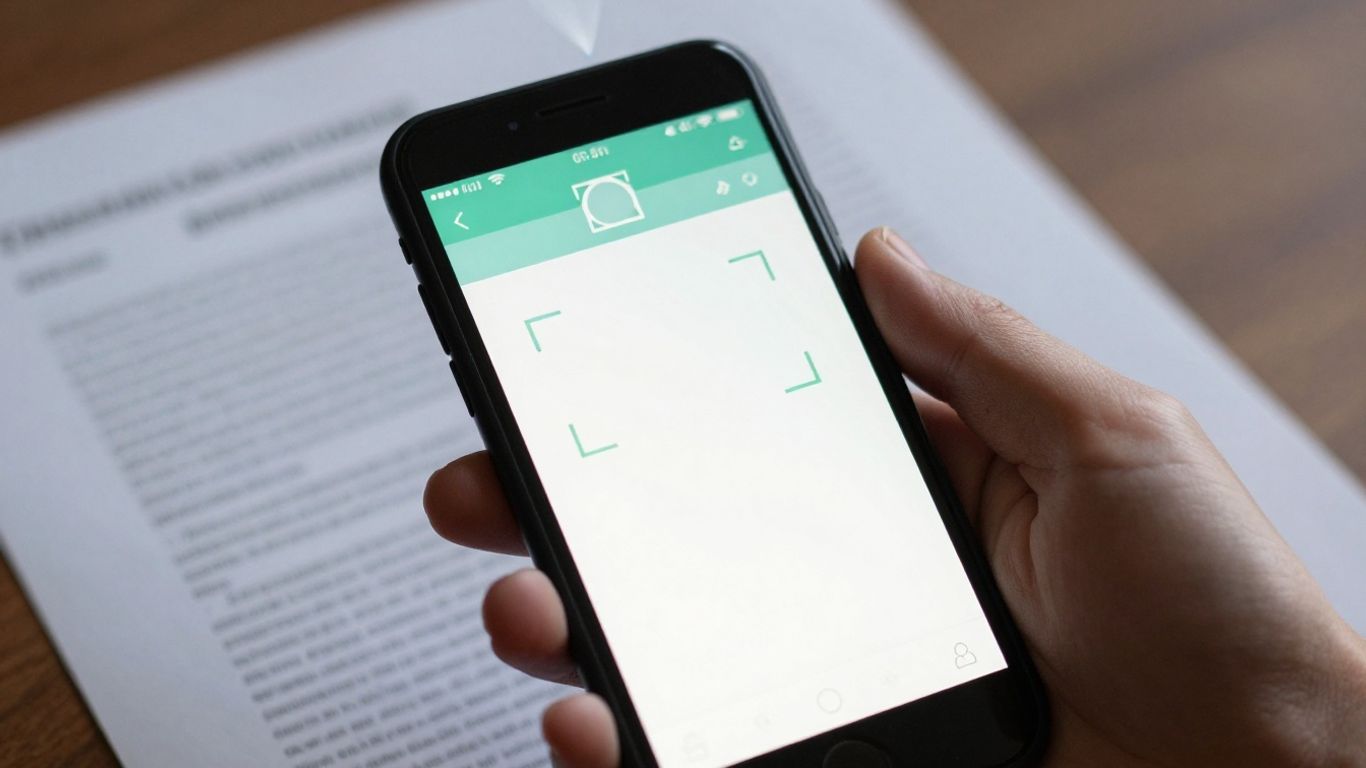
So, you've got a document that's just a picture – maybe a receipt, a flyer, or even a page from a book – and you need to get that text into a Word document so you can edit it. Doing this from your phone might sound tricky, but honestly, it's gotten pretty easy with the right apps. These tools are designed to take that image of text and turn it into something editable, like a .docx file.
Understanding App Capabilities for Scanned PDF to DOCX
Not all apps do the same thing, so it's good to know what you're looking for. Some apps are great at just converting a PDF file into a Word document, keeping the layout pretty much the same. Others have what's called Optical Character Recognition, or OCR. This is the magic that actually reads the text in the image and turns it into editable characters. Without OCR, you'd just get a picture inside your Word document, which isn't very helpful if you want to change the words.
- Basic Conversion: Takes a PDF and makes it a Word file, often preserving formatting. Good for PDFs that already have text, not so much for scanned images.
- OCR Conversion: Reads the text from an image or scanned PDF and makes it editable text in Word.
- Format Support: Check if it converts to .docx specifically, or if it offers other formats like .txt or .rtf.
Choosing the Right App for Scan to Editable Text
When you're picking an app, think about what you'll be scanning most often. If it's mostly printed documents, an app with good OCR is key. If you're dealing with a lot of existing PDFs that just need to be in Word format, a simpler converter might do the trick. Some apps offer a free version with limited features, which is a good way to test them out before committing. For example, you can try out a basic converter to see if it handles your documents well enough. You might find that a simple app is all you need for most tasks.
The accuracy of the text recognition really depends on how clear your original scan is. Blurry images or low-resolution scans will make it harder for the app to read the text correctly. It's always a good idea to get the clearest scan possible.
Utilizing Apps for Scan to Word iPhone Functionality
For iPhone users, there are plenty of apps that can handle this. Some are standalone apps you download from the App Store, while others might be built into apps you already use. For instance, apps like Adobe Scan are designed with scanning in mind and often have robust OCR capabilities. You can usually scan a document directly within the app, and then export it as a Word file. The process typically involves opening the app, taking a picture of your document, letting the app process it, and then choosing the Word export option. It's a pretty straightforward workflow once you get the hang of it.
Scanning Documents Directly into Word Format
Sometimes, you just need to get a document from paper into an editable Word file, and doing it right from your phone can save a ton of time. Forget about emailing scans to yourself or fiddling with a desktop scanner. There are some pretty neat ways to go straight from your phone's camera to a DOCX file.
Using Microsoft Lens for Seamless Conversion
Microsoft Lens is a free app that's really good at this. It uses your phone's camera to capture documents, whiteboards, or even pages from books. The cool part is that it can save directly into Word format as an editable document. It's available for both iPhone and Android, so most people can use it.
Here's a basic rundown of how it works:
- Open the Microsoft Lens app on your phone.
- Choose the 'Document' mode.
- Line up your document in the camera's view and take a picture. The app will help you crop it nicely.
- After capturing, you'll see an option to save it. Look for the 'Word' option to convert it directly.
This app is a solid choice if you're already in the Microsoft ecosystem. It makes the whole process feel pretty smooth.
Exploring Alternatives for Scan to Word Document
While Microsoft Lens is great, it's not the only player. There are other apps out there that do a similar job, and some might even have features you prefer. For instance, some apps focus on converting PDFs to Word, which is handy if you've already scanned a document into a PDF.
Many apps offer direct conversion from scanned images or PDFs to Word. The quality of the text recognition can vary, so it's always a good idea to test a few to see which one works best for your needs and the types of documents you're converting.
Some apps are designed to work offline, meaning your data stays on your device, which is a nice privacy feature. Others might offer more format options beyond just Word, like Excel or PowerPoint. You can find these by searching your phone's app store for terms like "PDF to Word converter" or "scan to text."
Converting Scanned PDFs via Word's Import Feature
If you've already got a document saved as a PDF on your phone, you might not even need a separate app. Word itself has a built-in feature that can open and convert PDFs. It's not always perfect, especially with complex layouts, but for simple text documents, it can work surprisingly well.
To try this:
- Open the Word app on your phone.
- Go to where you open documents (usually a '+' or 'Open' button).
- Browse to find your PDF file. You might need to go through your phone's file manager or cloud storage.
- Select the PDF. Word will then show a message saying it's going to convert the PDF into an editable Word document. Just tap 'OK'.
Word will then try its best to recreate the text and formatting. It's a handy trick to know if you're already working within the Word app and want to edit a PDF quickly. You can find more details on how this works for desktop versions of Word, but the mobile app functions similarly.
Optimizing Your Scanned Document for Conversion
So, you've snapped a picture of that document with your phone, ready to turn it into an editable Word file. But hold on a sec, before you hit convert, a little prep work can make a huge difference. Think of it like getting your ingredients ready before you start cooking – it just makes the whole process smoother and the final dish (or document) much better.
Ensuring Clarity for Accurate Text Recognition
This is probably the most important step. If the app can't clearly see the text, it's going to have a tough time reading it. What does that mean in practice? Well, for starters, try to get good lighting. Avoid shadows that obscure words. Also, make sure your phone is held steady; blurry text is a no-go for optical character recognition (OCR) software. If you're scanning a page from a book or a document with a busy background, sometimes a plain piece of paper behind it can help the app focus on just the text. The clearer the original image, the more accurate your converted Word document will be.
Preparing Images for Conversion to DOCX
Beyond just taking a clear photo, there are a few other things you can do. Most phone apps will let you crop the image. Use this feature to get rid of any extra background clutter – just the document itself. If the document is a bit crooked, some apps have a straightening tool. If yours doesn't, you might need to do that in a separate photo editing app before you even start the conversion. Some apps also let you adjust brightness and contrast, which can sometimes help make the text pop more. It’s all about making the text as distinct as possible from the background.
Understanding Limitations in Handwritten Text Conversion
Now, about handwriting. This is where things get tricky. Most apps are designed to read printed or typed text. Handwriting, with all its loops, slants, and unique styles, is really hard for OCR to figure out. While some newer apps are getting better, don't expect perfect results. If you have a document with a lot of handwritten notes, you might find that the conversion results in a lot of errors, or maybe even just an image of the text rather than editable characters. In these cases, you might be better off just retyping it, or at least be prepared for a significant amount of editing. For typed documents, though, this preparation really pays off.
If your document is a scanned image without any actual text data, the conversion app won't be able to make it editable. It needs to perform OCR, which is the process of recognizing text within an image. Without this capability, you'll just get an image file inside your Word document, which you can't edit like regular text. This is why checking if the app has OCR is important, especially if you're dealing with older scans or faxes.
Here's a quick rundown of what to aim for:
- Good Lighting: No dark spots or glare.
- Steady Hand: Avoid blurry photos.
- Clean Background: Remove extra paper or objects.
- Straight Image: Crop and straighten as needed.
- Printed Text: Best for accuracy.
If you're struggling with a particularly difficult document, you might need to look into more advanced PDF tools that offer better OCR capabilities.
Post-Conversion Editing and Refinement
So, you've managed to get your scanned document into a Word file. Awesome! But let's be real, it's probably not perfect right out of the gate. Think of this stage like cleaning up after a big project – you've done the heavy lifting, now it's time for the details.
Reviewing Converted Text for Accuracy
This is probably the most important step. Optical Character Recognition (OCR) is pretty amazing these days, but it's not magic. It can get confused, especially with weird fonts, low-quality scans, or even just smudges on the original paper. You'll want to read through the entire document, comparing it against the original scan if you still have it handy. Look for:
- Misspelled words: Sometimes letters get swapped (like 'rn' for 'm').
- Incorrect numbers: Especially in tables or financial documents.
- Jumbled sentences: OCR can sometimes mess up word order.
- Missing punctuation: Commas and periods can vanish.
The goal here is to make sure the text accurately reflects what was on the original page. It might seem tedious, but it's way faster than retyping everything. If you're converting a lot of documents, you might find that some apps are better than others at this. For instance, some apps are designed to convert scanned PDFs into editable Word documents quickly using OCR technology.
Adjusting Formatting in the DOCX File
Once the text is accurate, you'll likely need to fix the formatting. The app tries its best, but it doesn't always know how you want things to look. You might see:
- Weird spacing: Extra spaces between words or lines.
- Incorrect fonts: The app might pick a default font that doesn't match.
- Lost formatting: Bold text, italics, or bullet points might disappear.
- Page breaks: Documents might be split into too many or too few pages.
This is where you'll spend time tidying up. Adjusting line spacing, changing fonts, re-applying bold or italics, and fixing paragraph breaks are common tasks. If you're dealing with a PDF that was originally a Word document, the conversion might be smoother, but scanned documents are a different beast. You might need to use Word's built-in tools to realign columns or fix table structures.
Handling Image Placement and Text Overlap
Scanned documents often have images, charts, or diagrams. The conversion process might place these images awkwardly, sometimes even covering up text. You'll need to:
- Reposition images: Drag and drop them to where they make sense.
- Adjust text wrapping: Decide if text should flow around the image, be behind it, or in front of it.
- Resize images: Make sure they fit the page without distorting.
Sometimes, text that was originally part of an image (like a logo) might not be converted at all, or it might appear as a separate, uneditable image. If you need that text to be editable, you might have to retype it. It's a common issue, especially with older or lower-resolution scans. For complex documents, you might even consider using a tool like Adobe Acrobat to edit a scanned PDF before converting it, which can sometimes improve the OCR accuracy.
Remember that the quality of the original scan plays a huge role. A blurry, dark, or skewed scan will always be harder for any app to convert accurately. Taking a good photo or scan in the first place saves a lot of headaches later on.
Advanced Features and File Management
So, you've got your document scanned and converted into a Word file. What's next? Well, sometimes you don't need the whole thing, or maybe you need to get that file onto your computer or another device. This is where some of the more advanced features come into play.
Converting Specific Pages of a PDF
Not every scan needs to be a full conversion. Maybe you only need a single page from a multi-page document. Most good scanning apps will let you select just the pages you want. Look for an option like 'Select Pages' or 'Page Range' before you hit the convert button. It's a real time-saver if you're just pulling out a specific piece of information.
Managing and Transferring Converted Files
Once you've got your DOCX file, you'll want to know how to handle it. Many apps offer direct sharing options to email, cloud storage like Google Drive or Dropbox, or even messaging apps. Some apps also have built-in file managers to keep your converted documents organized right on your phone. You might also find options to send files directly to your computer via Wi-Fi or USB, though this can sometimes be a bit fiddly.
- Direct Sharing: Use the 'Share' icon to send your DOCX file via email, messaging, or cloud services.
- In-App File Management: Organize, rename, and delete your converted files within the app itself.
- Cloud Sync: Connect to services like Google Drive or Dropbox to automatically back up or access your files from anywhere.
- Transfer to Computer: Look for options like 'Open In...' or Wi-Fi transfer features.
Understanding Subscription Models for Full Features
It's pretty common these days for apps to offer a free version with basic features and then charge for the full experience. You might find that converting only a few pages, or using certain advanced export formats, requires a subscription. Sometimes, the free version will have ads, or a watermark on the converted document. Always check what the free version offers before you commit to buying. It's worth looking at the update history to see how often they add new features, like improved PDF conversion [fe35].
Be aware that some apps might remove support for older cloud services over time. It's a good idea to check the app's update notes or contact support if you rely on a specific cloud storage integration. This way, you won't be caught off guard when a service is no longer supported.
Conclusion
So, turning that scanned paper into a Word document from your phone isn't some impossible tech magic. With the right apps and a little know-how, you can make it happen. Whether you're using a dedicated app or Word's own features, you've got options. Just remember to check your work afterward to make sure everything looks right. It’s pretty neat what you can do right from your pocket these days.
Frequently Asked Questions
Can I really turn a picture of a document into a Word file on my phone?
Yep, you sure can! Lots of apps can take a photo of a document and change it into a Word file. Some apps are better than others at making the text editable, though.
What's the easiest way to scan a document to Word on an iPhone?
Using an app like Microsoft Lens is usually pretty easy. You just snap a picture, and it can save it right into a Word document that you can edit.
Do I need a special scanner to convert a scanned PDF to DOCX?
Not really. You can use your phone's camera to take a picture of the document, or if you have a scanner, you can scan it as a PDF. Then, apps or Word can help you convert it.
Will the app understand my messy handwriting?
Probably not very well. These apps work best with typed or printed text. Messy handwriting is super hard for them to read, so you'll likely end up with errors if you try.
What if the converted Word document has mistakes?
That happens sometimes! You just need to open the Word file and fix any typos or weird formatting. It's like proofreading a paper you wrote, but you're fixing what the app did.
Are there apps that can convert just one page of a PDF?
Yes, many apps let you pick which pages you want to convert. This is handy if you only need a small part of a bigger document. It saves time and keeps your file size down.