
How to Build a Paperless Home Office in 2026 (The Complete System)
Here are the main points to remember to build your paperless home office in 2026 and beyond.
Key Takeaways
- Understand the real costs of paper, not just for trees, but for your time and money.
- Plan your transition by first seeing what paper you have, then deciding on your digital system.
- Get the right tools: a good scanner (or phone app), reliable cloud storage, and maybe a document management system.
- Organize your digital files with a clear folder structure and consistent file names so you can find things fast.
- Automate your workflow for new documents to keep the paperless system running smoothly without constant effort.
Understanding the Benefits of a Paperless Home Office 2026
So, you're thinking about ditching the paper stacks and going digital in your home office for 2026? Smart move. It's not just about saving trees, though that's a nice bonus. We're talking about real, tangible improvements to how you work and how much money you keep in your pocket. Think about it: how much time do you waste hunting for that one specific document? Hours, right? This shift isn't just a trend; it's a fundamental upgrade to your operational efficiency.
Reducing Operational Costs and Time Waste
Let's get down to brass tacks. Paper, ink, printers, filing cabinets – they all add up. Not to mention the space they take up. Professionals can spend a shocking amount of their week just trying to find information. If you're paying yourself or an employee $60,000 a year, and even 10% of that time is spent searching for documents, that's $6,000 per person, per year, just gone. For a small team, that's tens of thousands of dollars evaporating into thin air. A digital system means faster retrieval, less wasted time, and more money staying where it belongs.
- Reduced Supply Costs: No more buying reams of paper, ink cartridges, or paying for printer maintenance.
- Minimized Storage Needs: Free up valuable office space previously occupied by bulky filing cabinets.
- Faster Information Retrieval: Locate any document in seconds, not hours, with a few clicks.
The real cost of paper isn't just the paper itself, but the time and effort spent managing, storing, and searching for it. A digital system turns that wasted time into productive work.
Ensuring Compliance and Data Security
Keeping up with regulations like GDPR or industry-specific rules can be a nightmare with paper records. Audit trails are difficult to maintain, and secure destruction protocols are a hassle. Digital systems, however, make compliance much more manageable. You can set up access controls, track document history, and implement secure deletion policies. Plus, think about disasters – fires, floods, or even just a spilled coffee. A physical document can be destroyed in an instant. Cloud storage offers a level of protection that paper simply can't match, making your data resilient against unforeseen events. Implementing a paperless filing system can significantly improve your data security posture.
Enhancing Accessibility and Collaboration
Remote work is here to stay, and your documents need to be accessible from anywhere. Paper doesn't travel well. With a digital document management system, your files are available whether you're at your home desk, a client's office, or even on vacation. This also makes collaboration a breeze. Multiple people can access and work on documents simultaneously without the confusion of endless email attachments and version control issues. Everyone is looking at the most up-to-date information, which means fewer mistakes and smoother project flow. It's about making your work accessible when and where you need it, which is a big deal in today's flexible work environment.
Planning Your Transition to Go Paperless at Home
Okay, so you've decided to ditch the paper piles and go digital. That's awesome! But before you start scanning everything in sight, let's talk about making a plan. Jumping in without one is like trying to build IKEA furniture without the instructions – messy and probably won't end well.
Conducting a Comprehensive Paper Audit
First things first, you need to know what you're dealing with. This means pulling out everything. Seriously, every drawer, every cabinet, every box that's been shoved under a desk. Don't just guess; get a real feel for the volume and types of paper you have. You'll likely end up with three main piles:
- Throw Away: This is the biggest pile. Think old bills from years ago, junk mail, expired coupons. If you haven't needed it by now, you probably never will. Shred or recycle these responsibly.
- Scan and Throw Away: These are documents you might want to reference later but don't need the physical copy of. Think receipts for tax purposes from a few years back, old project notes, or manuals for things you no longer own. These get digitized and then tossed.
- Scan and Keep: This pile should be tiny. It's for documents that absolutely require a physical original, like property deeds, birth certificates, or original signed contracts. Store these securely, maybe in a fireproof safe.
This audit isn't just about decluttering; it's about understanding the scope of your digitization project and making informed decisions about what truly needs to be kept digitally versus what can be safely discarded. It sets the stage for everything that follows.
Defining Your Digital Document System Strategy
Once you know what you have, you need a system for your new digital life. This involves deciding on your core tools and how they'll work together. Think about where your documents will live – a cloud storage solution is usually the way to go for accessibility and backup. You'll also need to figure out your workflow: how will new documents get into the system? Will you scan everything as it comes in, or set up digital-first processes with vendors? Planning this out now saves a lot of headaches later. It's a bit like doing a competitor analysis for your own workflow, figuring out the best approach before you commit. Understanding competitor strategies can sometimes spark ideas for your own system.
Setting Realistic Timelines for Digitization
Going paperless doesn't happen overnight. Trying to scan your entire life in a weekend is a recipe for burnout. A good approach is a phased plan. Maybe start with active documents you use daily, like invoices and current contracts, in the first week. Then tackle older archives over the next few weeks or months. A 30-day plan can be super helpful:
- Week 1: Audit, choose your cloud storage, and set up your basic folder structure and file naming rules.
- Week 2: Start scanning active, high-priority documents and set up digital-first workflows for new incoming papers.
- Week 3: Tackle less frequently accessed but still important documents like HR files or past project records.
- Week 4: Begin scanning older archives and, importantly, shredding the originals you've digitized and verified. Document your new system so others can use it.
Remember, the goal is to build sustainable habits, not just to clear out old paper. This phased approach makes the transition manageable and helps you build confidence as you go.
Essential Tools for Your Digital Document System Home
So, you're ready to ditch the paper piles and build a digital filing system. That's awesome! But what do you actually need to make this happen without pulling your hair out? It’s not just about having a computer; it’s about having the right setup. Think of it like building a house – you wouldn't start without the right tools, right? The same goes for your paperless office.
Choosing the Right Scanning Hardware and Software
This is where your paper documents make their big leap into the digital world. You've got a few options here, depending on how much paper you're dealing with and how much you want to spend. The goal is to get clear, searchable digital copies.
- For light duty: If you only have a few pages here and there, a good scanner app on your smartphone can work wonders. Apps like Adobe Scan or Microsoft Lens are pretty handy and often have built-in text recognition (OCR) that makes your scanned documents searchable. They're usually free, too.
- For moderate volume: If you're scanning a stack of papers weekly, a dedicated desktop scanner is a good investment. Brands like Fujitsu (their ScanSnap line is popular) or Brother offer models that are faster and produce better quality scans than phone apps. They can often handle stacks of paper automatically.
- For heavy lifting: If you're facing a mountain of old documents, you might consider a professional scanning service for the initial backlog. It costs more upfront, but it can save you a ton of time and hassle.
No matter what you choose, aim to scan at a minimum of 300 DPI (dots per inch). This resolution is usually good enough for the software to read the text accurately later on.
Selecting a Robust Cloud Storage Solution
Once your documents are digital, you need a safe place to keep them. This is your new filing cabinet, but way better. Cloud storage is the way to go because your files are accessible from anywhere and protected from local disasters like fires or floods. Think about what your team already uses or what fits best with your workflow.
- Google Drive: If your team is already deep into Google Workspace, this is a natural fit. It syncs well and is easy to share files.
- Dropbox: Known for its reliable syncing across different devices and operating systems. It’s a solid choice if you have a mixed-tech environment.
- OneDrive: Perfect if your office runs on Microsoft products. It integrates nicely with Windows and Office apps.
- iCloud: If you're an all-Apple household or team, iCloud works well for keeping things synced across your Macs, iPhones, and iPads.
The key is to pick one system and stick with it. Trying to manage files across multiple cloud services can quickly become its own kind of chaos, undoing all the good work you've done going paperless. Having a single source of truth for your digital documents is important. Find the best home office tech to support your chosen setup.
Leveraging Document Management Systems
While cloud storage is great for just keeping files, a Document Management System (DMS) takes things a step further. It’s like a super-powered filing cabinet that helps you organize, track, and manage your documents more effectively. For a home office, this might sound like overkill, but even simple DMS features can make a big difference.
- Version Control: This is a lifesaver. It keeps track of different versions of a document, so you always know which is the latest and can go back to older versions if needed. No more
Mastering the Art of Scan and Organize All Documents
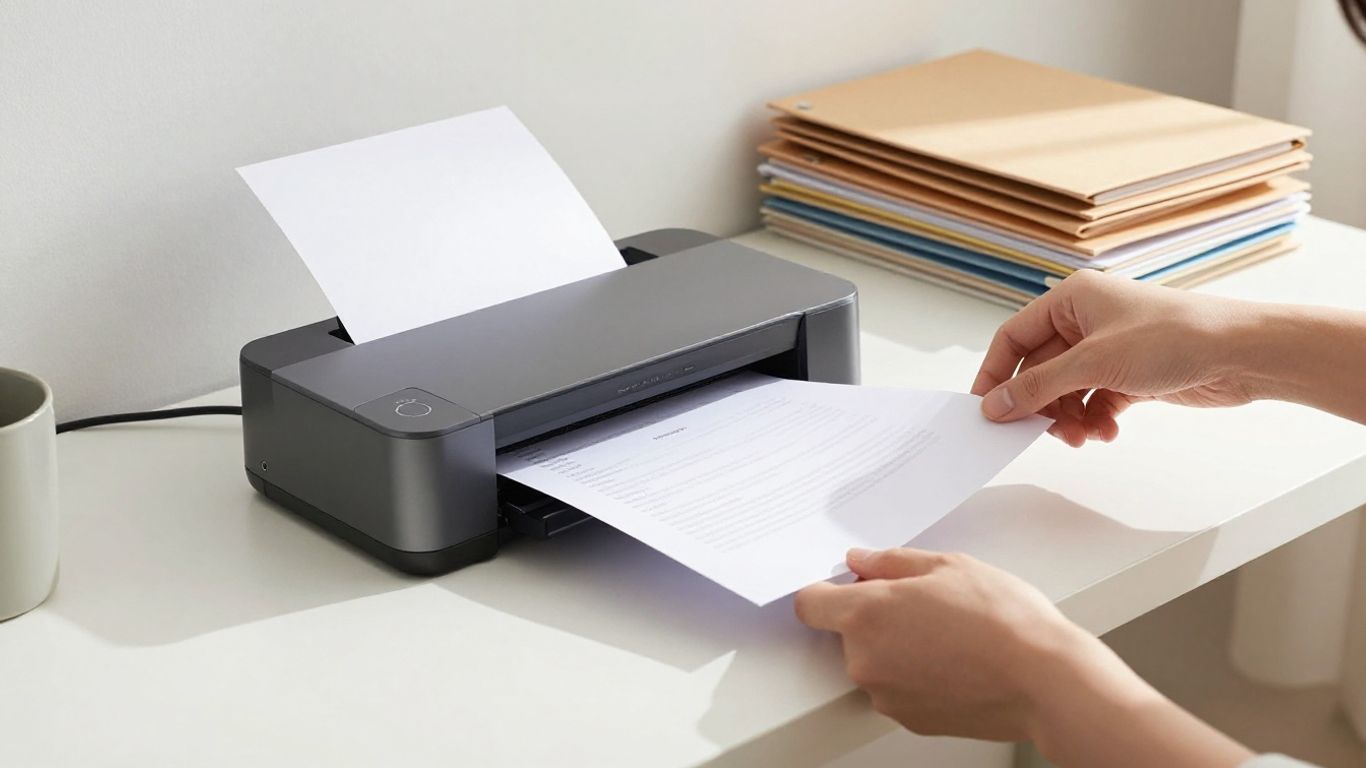
Okay, so you've got your scanner ready and your cloud storage picked out. Awesome. But here's the thing: just scanning a bunch of papers and dumping them into a digital folder isn't really going paperless. It's just creating digital clutter. We need a system, right? Something that actually makes finding stuff easy.
Implementing a Logical Folder Structure
Think about how you used to organize your physical files. Did you have folders for 'Finance,' 'Clients,' 'Projects'? Start there. It's way easier to adapt what you already know than to invent a whole new way of thinking. Keep it simple, though. Three levels deep is usually plenty. If you have to click through five folders to find one document, you'll probably just give up.
- Top Level: Broad categories like 'Finance,' 'HR,' 'Projects.'
- Second Level: Sub-categories. For 'Finance,' this might be 'Invoices,' 'Receipts,' 'Bank Statements.'
- Third Level: Dates are usually best here. '2026,' '2025,' etc. So, you'd have
Finance > Invoices > 2026.
This structure helps you zero in on what you need without a massive search. It's like having a well-organized filing cabinet, but without the actual cabinet.
Establishing Consistent File Naming Conventions
This is where most people trip up. You scan a document, and it gets a name like Scan_001.pdf or Invoice_Final_Really.pdf. Useless. A good file name tells you what the document is at a glance.
Here’s a format that works pretty well:
YYYY-MM-DD_DocumentType_Identifier_Details.extension
Let's break that down:
YYYY-MM-DD: The date the document was created or received. Putting the year first makes sorting easy.DocumentType: What kind of document is it? (e.g.,Invoice,Receipt,Contract,Report).Identifier: Who or what is this document about? (e.g.,ClientName,ProjectID,VendorName).Details: Any extra info that helps. (e.g.,Q3_2026,Signed,Draft).
So, instead of invoice.pdf, you might have 2026-06-15_Invoice_AcmeCorp_ProjectX.pdf. See how much better that is? You can find things so much faster.
Utilizing OCR for Searchable Documents
This is a big one. OCR, or Optical Character Recognition, is what makes your scanned documents actually searchable. If you can't highlight text in a PDF, the OCR probably didn't work, and you've basically just made a picture of a document. Most modern scanning software and apps have OCR built-in, but you have to make sure it's turned on and working.
When you scan a document, the software reads the text on the page and converts it into actual digital text. This means you can then use your computer's search function to find specific words or phrases within that document, just like you would with a regular text file. It's a game-changer for finding information quickly.
Seriously, don't skip this step. It's the difference between having a digital archive and having a digital graveyard of unsearchable files. If you're dealing with a lot of paper, consider a dedicated scanner that handles OCR well, like the Fujitsu ScanSnap series [f90a].
Automating Your Paperless Workflow
Okay, so you've got your scanner, your cloud storage is set up, and you've even figured out a decent folder system. That's awesome! But if you're still manually moving every single scanned document, you're going to get bogged down. Automation is where the real magic happens in a paperless office. It's about making your system work for you, not the other way around.
Setting Up Email Rules and Auto-Imports
Think about all the documents that come into your home office via email – invoices, statements, client communications. Instead of downloading each one and then uploading it to your system, you can set up rules. Most email clients (like Gmail or Outlook) let you create filters. You can tell your email to automatically move emails from specific senders or with certain subject lines into a designated folder. Some cloud storage services also have direct integrations, allowing emails or attachments to be sent straight to your digital filing cabinet. This is a huge time saver and stops those important digital papers from getting lost in your inbox.
Exploring AI for File Renaming and Tagging
This is where things get really futuristic, but it's totally doable now. Manually renaming hundreds of scanned documents with consistent names can be a real drag. Artificial intelligence tools can now read the content of your documents and automatically rename them based on predefined rules. For example, an AI could identify an invoice number, the vendor name, and the date, then rename the file accordingly. This makes searching for specific documents incredibly easy later on. Many modern document management systems are starting to build this capability right in, or you can use standalone AI tools that integrate with your cloud storage. It's like having a super-efficient digital assistant for your files.
Digitizing Incoming Documents at the Source
This might sound a bit tricky, but it's about changing habits. For things like bills or mail, can you get them sent directly to your email as a PDF instead of a paper copy? Many companies are happy to switch you to electronic statements. For physical mail that still arrives, the goal is to scan it as soon as possible. Don't let it pile up on your desk. Have a designated spot near your scanner for incoming mail and make it a habit to process it daily. The faster you get it into your digital system, the less likely it is to get lost or forgotten. This is a key step in truly achieving a paperless office and keeping your workflow smooth.
Automating your paperless workflow isn't just about fancy tech; it's about building smart habits and letting technology handle the repetitive tasks. By setting up email rules, using AI for file management, and digitizing documents right away, you free up your mental energy for more important work. It's about creating a system that runs itself as much as possible.
Here's a quick look at how automation can help:
- Email Attachments: Automatically save attachments from specific senders to a designated cloud folder.
- Receipts: Use a mobile scanning app that automatically uploads scanned receipts to a 'Receipts' folder, perhaps even tagging them by category.
- Form Submissions: If you use online forms, set them up to send data directly to a spreadsheet or a document management system.
These small automations add up, making your paperless system much more efficient and less of a chore to maintain. It's all part of building a robust workflow automation system that supports your digital-first home office.
Maintaining and Refining Your Paperless System
So, you've done the big push, scanned all those old files, and set up your shiny new digital filing system. Awesome! But here's the thing: going paperless isn't really a 'set it and forget it' kind of deal. It's more like tending a garden. You gotta keep at it, or things can get messy again, fast. Think of it as an ongoing project, not a one-time fix. Regular check-ins are key to keeping your digital office running smoothly.
Regularly Reviewing Your Filing Structure
Your filing structure is the backbone of your digital office. What worked when you first set it up might feel a bit clunky after a few months, especially if your business grows or your needs change. It's a good idea to set aside some time, maybe quarterly, to just look at how you're organizing things. Are you finding files quickly? Are there folders that are getting way too full, or ones that are practically empty? Maybe you need to add a new category or split an existing one. It doesn't have to be a huge overhaul, just a little tweak here and there can make a big difference. This is also a great time to look at your digital document system strategy and see if it still aligns with how you work.
Implementing a Backup and Disaster Recovery Plan
This one's super important. You've got all your important stuff digitized, which is great for accessibility, but what happens if your main storage fails? Or worse, what if there's a fire or flood? Your cloud storage is good, but it's not a foolproof backup. You need a plan B. The old 3-2-1 rule is still solid advice: keep at least three copies of your data, on two different types of storage, with one copy kept offsite. This could mean using a secondary cloud service or even an external hard drive stored somewhere safe. It sounds like a hassle, but honestly, it's way less hassle than losing everything.
Adapting Your System as Your Needs Evolve
As you get more comfortable with your paperless setup, you'll start to see opportunities for improvement. Maybe you realize you're spending too much time renaming files manually, and it's time to look into AI tools for that. Or perhaps you discover a new feature in your cloud storage that could streamline your workflow even further. Don't be afraid to experiment and adjust. The goal is to have a system that works for you, not the other way around. Think about how you can make things even more efficient. For instance, if you're still getting a lot of paper mail, consider setting up a dedicated spot near your door to scan it immediately, rather than letting it pile up. This proactive approach helps maintain the benefits of going paperless and provides secure access to essential documents from anywhere.
Conclusion: Your Real Paperless Office
So, what's the main thing to remember? Going paperless isn't just about getting rid of paper. It's about setting up a system where paper isn't your go-to for storing and finding stuff anymore. The businesses that do this well are the ones that figure out how to name their files properly. It’s not about the scanning or the storing; it’s about the naming. A perfectly scanned file with a bad name is just as lost as a paper document in the wrong drawer. Start small, maybe with the papers you use most often this week. Get a naming system down that everyone can use. And if thinking about renaming hundreds of files makes you want to put it off forever, that’s normal. Let the automated tools handle the boring stuff so you can focus on what really matters for your work. Your old filing cabinet has served you well, but it’s time for it to retire.
Frequently Asked Questions
Why should I bother going paperless in 2026?
Going paperless saves you money on paper and supplies. More importantly, it saves you tons of time. Think about how long it takes to find a paper document versus a digital one. Plus, it makes your information safer and easier to access from anywhere, which is great for working from home or on the go.
Do I have to get rid of *all* my paper?
Not necessarily! The goal is to stop using paper as your main way to keep and find information. You might still have some paper for a while, especially for old documents you need to keep for legal reasons. The idea is to digitize what you use most and set up a system so new papers don't pile up.
What's the best way to scan documents?
For a few pages, your smartphone camera with a scanning app (like Adobe Scan or Microsoft Lens) works great. If you have a lot of paper, a dedicated document scanner, like a Fujitsu ScanSnap, is faster and gives better results. Just make sure you scan at a good quality so the text is clear.
How do I organize all my digital files?
Think of a system like folders on your computer. Create main folders for big categories like 'Finance,' 'Clients,' or 'Personal.' Then, make sub-folders inside those. Also, use clear and consistent file names so you know what's in each file without opening it. For example, 'Invoice_ClientName_YYYY-MM-DD.pdf'.
What is OCR and why do I need it?
OCR stands for Optical Character Recognition. It's a technology that lets computers 'read' the text in scanned documents. This means you can search for specific words or phrases within your digital files, just like you search on Google. Without OCR, your scanned documents are just like pictures, and you can't search them easily.
Is my cloud storage safe enough, or do I need a backup?
Cloud storage is good for access, but it's not a perfect backup. Things can happen. It's smart to have a separate backup. This could be another cloud service, an external hard drive, or a combination. The rule is to have your files in at least two different places, with one copy stored somewhere else.