
Best Free PDF Scanner App With No Subscription and No Watermarks (2026)
When picking a scanner app, it's good to know what matters most. Here are the main things to remember when looking for a free PDF scanner that won't cost you anything or add annoying watermarks.
Key Takeaways
- Scanify PDF is a top choice for a free document scanner with no subscription or watermarks.
- Many apps offer basic scanning for free, but paid versions often add advanced features.
- Privacy is important; some apps have had security issues in the past.
- Look for features like automatic cropping, OCR for text recognition, and cloud saving.
- Consider your needs: simple scans, integration with other services, or offline use.
Scanify Pdf
Scanify is a pretty straightforward app for turning your phone into a document scanner. It’s designed to be quick and easy, letting you scan, sign, and then organize your papers without too much fuss. You can save your scans as either PDF or JPEG files, which is handy. It also has this thing called OCR, which is basically a way for the app to read the text in your scanned documents. This means you can actually search through your scanned files later on, which is a lifesaver if you've got a lot of paperwork.
One of the main selling points is that it helps you go paperless. If you're trying to cut down on physical documents, this app can help you get there using just your phone. They do offer a free trial, so you can give it a whirl before committing to anything.
Scanify aims to simplify the process of digitizing documents, making it accessible for anyone looking to manage their paperwork more efficiently through their mobile device.
Here’s a quick look at what it offers:
- Scan Documents: Quickly capture documents using your phone's camera.
- Sign Documents: Add your signature directly to scanned files.
- Organize Files: Keep your scanned documents tidy and easy to find.
- OCR Technology: Extract text from scans for searching and editing.
- Export Options: Save your work as PDF or JPEG files.
It’s a solid option if you need a no-frills scanner that gets the job done without a lot of extra bells and whistles. For anyone looking to digitize their life, Scanify is worth a look.
Adobe Scan
Adobe Scan is a pretty solid option if you're already in the Adobe universe, you know, with Acrobat and all that. It integrates really nicely with those services, which can be a big plus if you're using them already. The app itself is pretty fast at grabbing documents, and it does a decent job of automatically finding the edges of whatever you're trying to scan. You can scan multiple pages into one PDF, which is handy.
One of the standout features is its OCR, or optical character recognition. It's pretty good at picking up typed text from your scans, making those documents searchable later on. This is super useful for finding old receipts or contracts without having to flip through everything. It even works with small fonts, which is impressive.
Here's a quick look at what it offers:
- Automatic Edge Detection: It usually finds the document boundaries on its own.
- OCR Capabilities: Recognizes typed text in many languages.
- Adobe Ecosystem Integration: Works well with Acrobat and Creative Cloud.
- Multiple Page Scanning: Combine several pages into a single PDF.
However, it's not perfect. The default color filter can sometimes make things look a bit too bright, almost overdone. Also, it doesn't handle handwriting for OCR at all, which is a bummer if you need to make handwritten notes searchable. And, you do need an Adobe account to use it, which might be an extra step for some people. If you're looking for a scanner that plays nice with other Adobe products, this is definitely one to consider.
Microsoft Lens
Microsoft Lens, which used to be called Office Lens, was a pretty handy tool for scanning documents right from your phone. It was especially good if you were already using other Microsoft products like OneDrive or OneNote. You could snap a picture of a whiteboard, a business card, or a document, and Lens would clean it up, make it readable, and send it off to where you wanted it.
It had some neat features, like turning business cards directly into contacts in your phone, which was a lifesaver for networking events. Plus, it could export directly to Word or PowerPoint, making it easy to edit text or presentations. For anyone deep in the Microsoft ecosystem, it felt like a natural fit.
However, there's a big catch for 2026: Microsoft Lens was retired in January 2026, and all its scanning features stopped working by March 2026. So, while it was a good option for a long time, it's no longer available for use.
This app was a solid choice for quick scans and integrating with Microsoft's cloud services. Its ability to clean up images and make text editable was a real plus for many users.
If you're looking for alternatives, you might want to check out apps that are still actively supported and developed. There are plenty of other free options out there that don't require a subscription or add watermarks to your scans. For instance, Lens Doc Scanner & PDF Maker is a good one to consider if you want high-quality PDFs without any extra hassle.
Genius Scan
Genius Scan is a pretty solid option if you're looking for a free scanner app that doesn't mess around with watermarks. The basic version gives you all the essentials for scanning documents, and you don't have to worry about hitting some artificial limit on how many pages you can scan. It's available for both Android and iOS, which is always a plus.
If you need more advanced features, like OCR (optical character recognition) to make your scanned text searchable, or cloud syncing to keep your documents backed up across devices, you'll need to look at their paid options, Genius Scan Plus or Genius Scan Ultra. But for just getting clear, clean scans without any extra junk, the free version holds its own. It's a good choice for everyday scanning needs.
The app offers a straightforward scanning experience, focusing on core functionality without overwhelming the user. While advanced features are behind a paywall, the free tier is quite capable for basic document digitization.
It's not quite as polished as some of the bigger names out there, and sometimes the user interface can feel a little clunky, especially if you're trying to scan in landscape mode. Also, the OCR feature isn't on by default; you have to remember to tap a separate button for it on each page, and even then, searching within the recognized text can be hit or miss. Still, for a no-cost, no-watermark solution, it's definitely worth checking out, especially if you're not constantly dealing with super complex documents. You can find out more about their different subscription plans on their website.
Camscanner
CamScanner is another popular choice for scanning documents on the go. It's been around for a while and has a pretty solid reputation for getting the job done. You can scan pretty much anything – receipts, notes, whiteboards, you name it. The app automatically crops and enhances your scans, making them look clean and professional.
One of the things people like about CamScanner is its ability to organize scans into folders. This is super helpful if you're dealing with a lot of documents and need to keep them sorted. It also offers OCR (Optical Character Recognition) to extract text from your scans, which can be a real time-saver if you need to copy text from an image.
While there's a free version, it does come with a watermark on your documents. If you're looking for a completely watermark-free experience, you might need to consider their paid options. They do have some student benefits available, which could be a good deal if you qualify. You can check your subscription status within the app itself.
CamScanner is a good option if you need to scan documents quickly and want some basic organization features. Just be aware of the watermark in the free version.
Here's a quick rundown of what it offers:
- Scan and Enhance: Automatically crops, enhances, and makes scans look sharp.
- Organization: Create folders to keep your documents tidy.
- OCR: Extract text from scanned images.
- Cloud Sync: Syncs scans across devices (paid feature).
It's definitely worth trying out the free version to see if it fits your needs before committing to any paid plans. For students, there are specific benefits that might make it a more attractive option.
Swiftscan
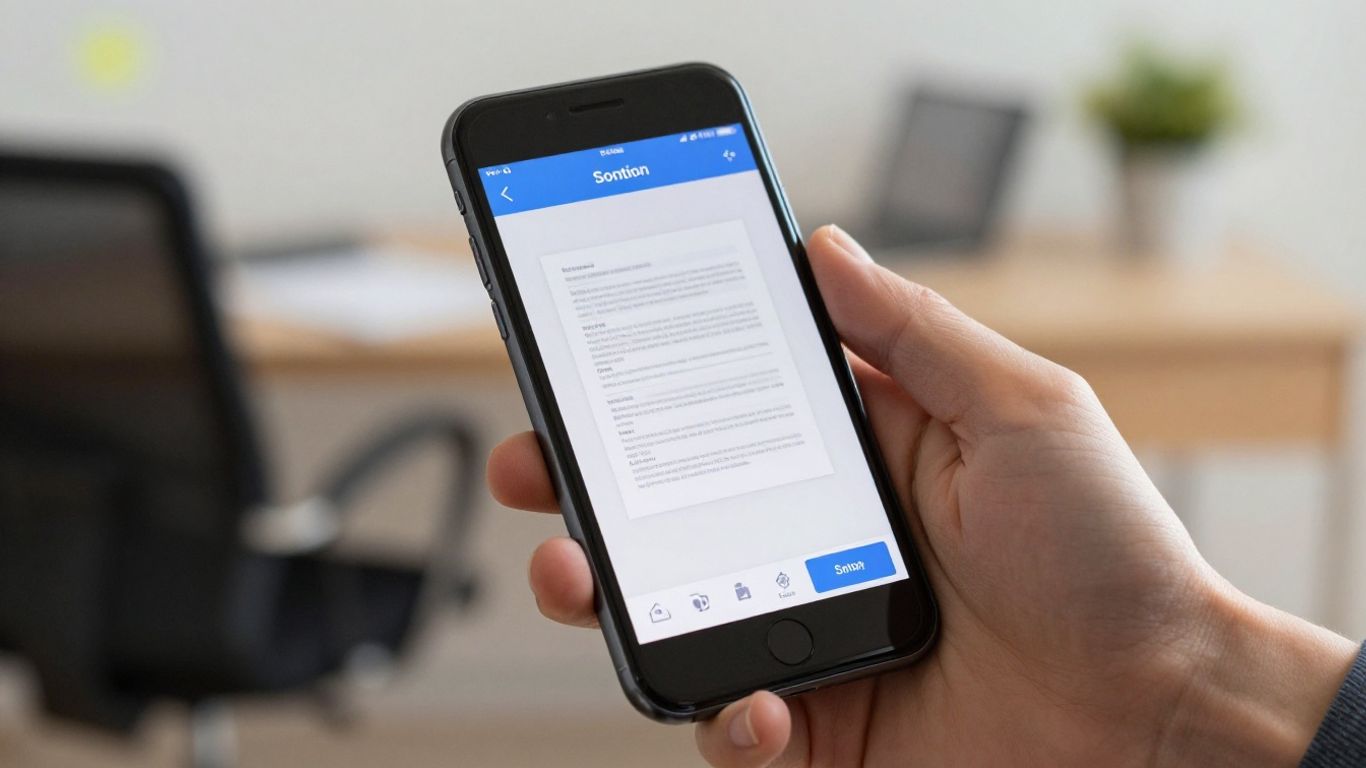
SwiftScan is a pretty solid option if you're looking for a free PDF scanner. It's got a lot of features that you might expect from a paid app, like file naming and organization tools, plus it connects to a bunch of cloud storage services. You can get it for free on both iPhone and Android devices.
It's nice that they offer a free version, but honestly, the real power comes with the "Pro" upgrade. That's where you get all the bells and whistles. Still, for basic scanning needs, the free version does a decent job. It's recognized as an "Editors' Choice" by Google Play, which says something about its quality.
SwiftScan offers a good balance between free functionality and advanced features, making it a versatile tool for digitizing documents on the go.
Some of the cool things it does include:
- File naming conventions to keep things tidy.
- Built-in faxing capabilities (though this might be a paid feature).
- Integration with dozens of cloud storage options like Google Drive and Dropbox.
- Organization tools to manage your scanned documents effectively.
While the free version is usable, many users find the paid upgrade, which costs around $7.99, is what truly makes the app shine. It's definitely worth checking out if you need more than just basic scans. It's a good alternative to Adobe Scan if you're looking for something with a slightly different feel.
Nomad Scan
Nomad Scan is a pretty straightforward document scanner app that gets the job done without any fuss. It’s a solid choice if you’re looking for a free scanner that won’t slap a watermark on your documents or demand a subscription just to remove it. You can scan documents and save them as either PDFs or high-quality JPGs. Plus, it has a neat feature that lets you pull text right out of your scanned images, which is super handy for grabbing information without retyping.
One of the best things about Nomad Scan is how simple it is to use. You don't even need to sign up for an account to start scanning, which is a nice change of pace. It automatically crops the edges of your documents, so you usually get a clean scan right off the bat. If you need to tweak it, you can manually adjust the crop box after taking the picture. It also lets you add handwritten signatures directly to your scans, which is a useful touch for signing documents on the go.
Here’s a quick rundown of what you get:
- No Watermarks: Your scans are clean, no extra branding added.
- Unlimited Text Recognition (OCR): Extract text from your scans for free.
- Automatic Cropping: Helps get clean borders automatically.
- Save as PDF or JPG: Flexible export options.
- Local Backup: Manually back up your scanned files.
- No Sign-Up Required: Start scanning immediately.
The app keeps your scanned documents stored locally on your device. This means no scanned documents are sent over the network, which is a good thing for privacy. You can also manually create backup files for your scans and restore them later if needed. It’s a no-frills approach that prioritizes simplicity and user control.
While it doesn't have all the bells and whistles of some paid apps, Nomad Scan offers a really good set of features for free. It’s a great option for anyone needing to scan documents quickly without breaking the bank or dealing with annoying limitations. It’s definitely worth checking out if you need a reliable scanner for everyday tasks.
Abbyy Finereader
Abbyy Finereader, also known as Capture Documents on Android and FineReader on iOS, offers a decent free scanning experience. You can scan up to three multi-page documents without paying anything. After that, if you want unlimited scanning, OCR capabilities, and cloud syncing, you'll need to pay about $6 per month or $21 annually. It's pretty good at figuring out where the edges of your documents are, and it's generally fast.
One thing to note is that it has two OCR options: one that works on your device, which isn't as accurate, and a cloud-based one that's better but takes a bit longer. For a four-page scan, the cloud OCR might take around three minutes. It doesn't really have special scanning modes like some other apps, but it gets the job done quickly and accurately for basic document scanning.
While Abbyy Finereader provides a solid free tier for occasional use, its subscription model kicks in for more extensive needs. The transition from free to paid features is clear, but users looking for a completely free, unlimited solution might need to explore other options.
If you're scanning a lot of documents and need that advanced text recognition, the paid version could be worth it. However, for simple scans and if you're trying to avoid any subscriptions, you might find the free limit a bit restrictive after those first three documents. It's a good option if you don't scan constantly, but if you're a power user, you'll likely hit the limit fast. You can find more details on their paid features if you're curious.
Iscanner
iScanner is another app that lets you turn your phone into a scanner. It's available on both Android and iOS, which is good. When I tried it out, though, it felt a bit slower than some of the other options. It seemed to take more taps to get a document scanned and saved compared to, say, Adobe Scan. Plus, there were these pop-up ads that were kind of annoying and not super easy to get rid of.
If you're looking to go pro with iScanner, it's not exactly cheap. You're looking at $5 a week or $21 a year for their paid plans. That's a bit steep if you're just trying to scan a few things now and then.
While iScanner does offer scanning capabilities, its user experience can be a bit clunky with frequent ads and a slower workflow. The cost for premium features might also be a barrier for casual users.
Here's a quick rundown of what you might encounter:
- Scanning Speed: Can be slower than competitors.
- User Interface: Frequent, hard-to-dismiss ads.
- Cost: Weekly and yearly subscriptions are available.
It can handle scanning various documents, and it does have features to transform documents into digital files. But honestly, for a free app with no subscription and no watermarks, there are smoother options out there.
Notes
So, we've looked at a bunch of apps that can scan documents, right? But what if you're already using something you have and don't want to download another app? Well, you might be surprised to learn that some apps you already use for other things have built-in scanning features. It's pretty handy when you just need to quickly capture a document without fuss.
For iPhone users, the built-in Notes app is a hidden gem for scanning. It's not just for jotting down thoughts anymore. You can scan documents directly within a note, and it does a decent job of cleaning them up. It even has a neat trick where you can scan text directly without saving the whole scan, which is great for grabbing info on the fly. It's not going to replace a dedicated scanner app if you need advanced features, but for everyday tasks, it's surprisingly capable.
Here's a quick rundown of what the Notes app offers for scanning:
- Direct Scanning: Start a scan right from within a note.
- Automatic Edge Detection: It usually figures out where the document ends.
- Basic Filters: Helps make the scan look a bit cleaner.
- Scan Text Feature: Copy text directly from a document without saving the full scan.
On the Android side, things are a bit different. If you use Google Drive, you've likely got a scanner built right in. It's usually accessible from the '+' button when you're adding files. It's pretty straightforward: point, shoot, and it saves as a PDF. Google Drive even added a feature back in June 2026 that lets you scan multiple pages at once, but you need a pretty beefy phone (8GB RAM or more) for that to work smoothly. If you don't have that, it's still a solid option for single pages. You can also use the Files by Google app, which does something similar but saves scans locally instead of uploading them to the cloud. Neither of these Google options have OCR built-in, but you can always open the scans in Google Docs later to get the text out if you need to. It's a good way to keep everything in one place, especially if you're already a heavy Google Drive user.
It's easy to get caught up in downloading the latest and greatest app for every single task. But sometimes, the tools you already have on your phone are more than enough for what you need. Taking a moment to explore the features of your existing apps can save you storage space and the hassle of learning a new interface.
While these built-in options are great for simplicity, they do lack some of the bells and whistles of dedicated apps. You won't find advanced editing tools or fancy filters. For example, if you need to scan something with a lot of color detail, you might notice some artifacts, like a slight haze around colored text if the original document was black and white. But hey, for quick document capture without any extra cost or subscriptions, they really do the job. If you find yourself needing more, apps like Genius Scan are still excellent free choices.
Conclusion
So, you don't have to spend money to get a good scanner app in 2026. Scanify PDF really stands out by offering everything most people need for free. It's secure, easy to use, and provides top-notch scanning. If you're already into Adobe or Microsoft products, their apps are decent choices too. But if you want a standalone scanner that really cares about your privacy, Scanify PDF is a winner. Give it a try and see for yourself!
Frequently Asked Questions
What's the best free scanner app out there?
Scanify PDF is a great free option for 2026. It lets you scan as much as you want, pull text from documents using OCR, sort things with AI, and back them up securely to Google Drive, all without paying or getting watermarks.
Is CamScanner safe to use now?
CamScanner had some problems with bad software back in 2019. While it's available again, people who worry about privacy might feel safer using apps like Scanify PDF or Microsoft Lens instead.
Which scanner app is best at reading text (OCR)?
Most good scanner apps can read text pretty well. Scanify PDF uses Google's tech for quick and accurate text reading. Adobe Scan is also good, but you might need to pay to use all its features.
Can I use scanner apps without the internet?
Yes, some apps let you do that. Scanify PDF is designed to work fully offline. You can scan, organize, and manage your documents even when you're not connected to the internet. It will sync up later when you get online.
What's the difference between free and paid scanner apps?
Free apps like Scanify PDF give you the main scanning tools without charge. Paid apps or subscriptions usually add things like better editing tools, more cloud storage, ways to scan many documents at once, and faster customer help. For most people, a free app works just fine.
Do I really need to pay for a scanner app?
Not at all! In 2026, you can get excellent scanner apps for free. Scanify PDF, for example, gives you all the important features without any cost, and it's safe and high-quality. You don't need to spend money to get a great scanning experience.